Page: 1
/ 14
Total 97 questions
AutoDesk Certified Professional in AutoCAD for Design and Drafting ACP-01101 Exam Questions
Question 1
(Note: This exam question rotors to the Shoot Sot Manager functionality in the Windows version and the Project Manager functionality in the Mac The Mac version appears in the parentheses.)
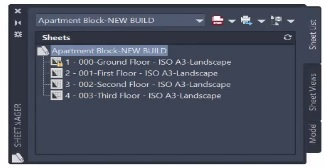
A CAD designer is working with a sheet set (project) The existing sheets (layouts) required are shown in the sheet set (project) in the exhibit.
The designer needs to add a new sheet (layout) from a different protect location, keeping the new sheet (layout) settings.
Which workflow should they use to add the new sheet (layout) to the existing shoot sot (project)?
Answer : A
Open the Sheet Set Manager:
Access the Sheet Set Manager from the 'View' tab on the ribbon or type SHEETSET in the command line.
Navigate to the Desired Project:
Ensure that the current project (sheet set) is selected in the Sheet Set Manager.
Import a New Layout:
Right-click on the sheet set or the appropriate subset (group) where you want to add the new sheet.
Select Import Layout as Sheet from the context menu.
Select the Source Drawing:
In the 'Select Drawing' dialog, navigate to the project drawing that contains the layout you want to import.
Select the layout(s) you wish to import and click Open.
Confirm the Import:
The imported layout(s) will now appear in the sheet set, retaining the original layout settings.
AutoCAD Documentation on the Sheet Set Manager: Sheet Set Manager
Question 2
Exhibit.
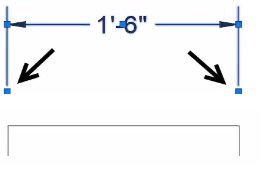
A CAD designer wants to stretch both extension lines of a linear dimension at equal distance using grips.
Alter selecting, the dimension, which workflow should the designer use? Note: Mac commands shown in parentheses. I
Answer : A
Using Grips to Stretch Dimensions:
Grips in AutoCAD allow users to edit objects by selecting specific points (grips) and dragging them to new locations.
Steps for Stretching Extension Lines:
Select the dimension.
Hold the Shift key to enable multiple grip selection.
Click on both extension line grips to select them.
Drag the grips to the desired new location to stretch both extension lines equally.
Conclusion:
To stretch both extension lines of a linear dimension equally, hold the Shift key and select both extension line grips.
AutoCAD Help Documentation on Grips and Editing.
AutoCAD User Guide on Dimensioning Tools.
Question 3
Refer to exhibit.
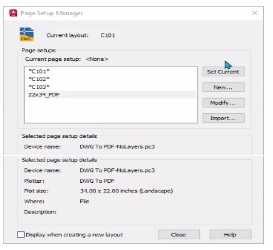
The CAD designer is asked to assign the 22x34_PDF page setup lo a layout
Which process should do used for the layout to achieve the desired result1? (Note: Mac commands shown in parentheses
Answer : A
To assign the 22x34_PDF page setup to a layout, follow these steps in the Page Setup Manager:
Open the Page Setup Manager:
Type PAGESETUP in the command line and press Enter.
Locate the 22x34_PDF Page Setup:
In the Page Setup Manager, locate the 22x34_PDF page setup in the list of available setups.
Set as Current:
Right-click (Control-click on Mac) on the 22x34_PDF page setup.
Select Set Current from the context menu. This action will assign the selected page setup to the current layout.
Verify the Changes:
The current layout will now use the 22x34_PDF page setup. You can verify this by checking the plot settings in the layout tab.
AutoCAD Help: Managing Page Setups - Autodesk Knowledge Network
Question 4
You need to change the width of a specific polyline without affecting the width of the other polylines in a drawing.
What should you use?
Answer : B
polyline is a connected sequence of line segments created as a single object that can contain a width. You can change the width of a polyline by using the PEDIT command.
Based on3and4, LWEIGHT is a command that sets the current lineweight, which is used for new objects and affects objects in the current space only. PLINEWID is a system variable that sets a default polyline width for new polylines. PLINEGEN is a system variable that controls how linetype patterns are generated around vertices.
https://www.roadlesstraveledstore.com/how-do-i-change-the-width-of-a-polyline-in-autocad/
https://knowledgeburrow.com/how-do-i-change-the-width-of-a-polyline-in-autocad/
Question 5
Exhibit.

A CAD designer is using the AutoCAD Count tool to quantify the number of DR-36 door blocks that are in the drawing. A yellow error alert triangle appears next to the total count for the DR-30 block when selecting the item from the count list as shown in me exhibit.
Which oi these conditions would result in the alert tor the block highlighted in red?
Answer : B
Understanding the Count Tool Alert:
In AutoCAD, the Count tool is used to quantify the number of block instances within a drawing.
A yellow error alert triangle next to the block count indicates an inconsistency or issue with the blocks in the drawing.
Common Reasons for Alert:
The block is on the wrong layer.
The block is exploded.
The block does not have its color assigned to BYLAYER.
The block has a different scale factor.
Identifying the Issue:
Option A: The block being on the wrong layer does not typically trigger a count alert.
Option C: The color assignment to BYLAYER does not affect the block count.
Option D: Different scale factors usually do not trigger a count alert unless the block definition is altered.
Option B: Exploded blocks result in losing the block definition, causing AutoCAD to alert the user of incomplete blocks, which matches the scenario depicted in the exhibit.
Conclusion:
The alert is due to the block being exploded, resulting in a mismatch between the expected block count and the actual block instances recognized by AutoCAD.
AutoCAD Help Documentation on Block Counting and Alerts.
User manuals and community forums discussing common issues with block counts.
Question 6
Refer to the exhibit.
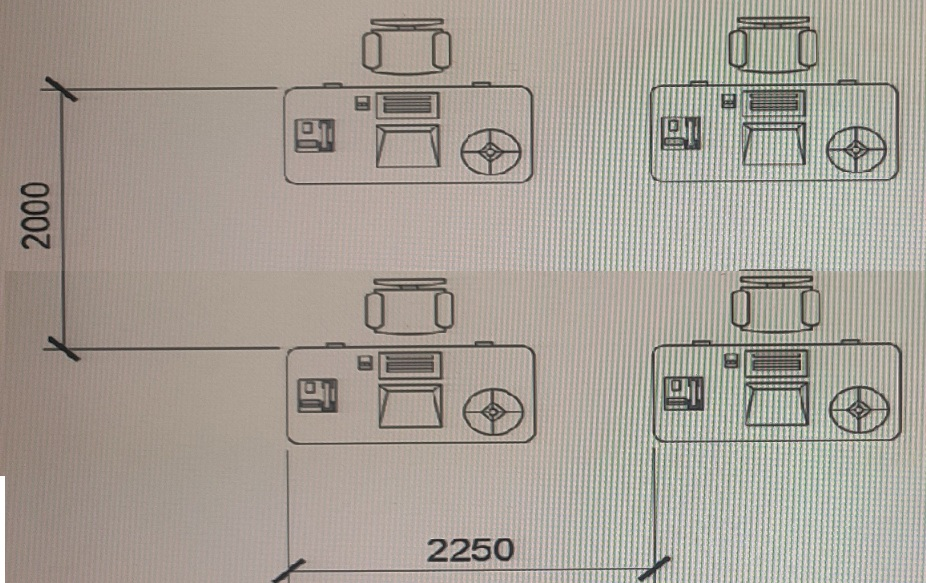
A workstation configuration has been created with the rectangular array command (ARRAYREST. The array is associative and has not been exploded or edited in any way. The dimensions are for reference only
To adhere to current office guidelines, the walkways between the workstations need to the made wider.
Which three actions are necessary to meet office layout guidelines? (Choose three.)
Answer : B, C, D
According to the search results123, a rectangular array command creates copies of objects in a regularly spaced rectangular pattern. You can adjust the spacing and number of rows and columns by dragging the grips on the array preview or modifying values on the Array context ribbon.
https://knowledge.autodesk.com/support/autocad/learn-explore/caas/CloudHelp/cloudhelp/2020/ENU/AutoCAD-Core/files/GUID-181BF535-D6F4-4B90-B04D-EB99C5488DAB-htm.html
Question 7
Refer to exhibit.
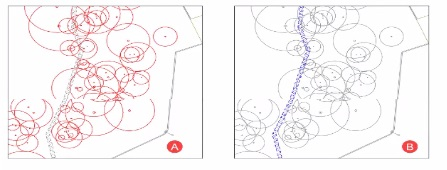
Viewport A was copied to create Viewport B in the same layout.
Viewport B needs to display the trail system in blue and all other content as gray as shown.
Which changes should the CAL) designer make to display the linework in Viewport b as requested?
Answer : D
To achieve the desired appearance where the trail system is blue and all other content is gray in Viewport B, the designer needs to utilize the viewport layer properties.
Open the Layer Properties Manager:
Type LAYER in the command line and press Enter.
Modify VP Layer Colors:
In the Layer Properties Manager, find the layers that need to be changed (the trail system and other content layers).
Select the specific viewport (Viewport B) from the 'Viewport Overrides' column.
Change the Colors for Viewport B:
For the trail system layer, set the color to blue.
For all other layers, set the color to gray.
This can be done by double-clicking the color cell in the 'VP Color' column and selecting the desired color.
Apply Changes:
Close the Layer Properties Manager after making the necessary changes. The viewport overrides will apply, showing the trail system in blue and other content in gray in Viewport B.
AutoCAD Help: Layer Property Overrides in Viewports - Autodesk Knowledge Network
 All Official Question Types