Page: 1
/ 14
Total 63 questions
AutoDesk Certified Professional in Revit for Electrical Design RVT_ELEC_01101 Exam Questions
Question 1
What two ways can an electrical designer copy a cable tray type from a project to a template? (Select two.)
Answer : B, C
In Autodesk Revit for Electrical Design, there are two correct and officially supported methods to transfer or copy Cable Tray Types (including sizes, materials, and type properties) from an existing project into a template file (.rte). These methods ensure that all type definitions, fittings, and related MEP settings are preserved.
Option B (Clipboard Copy within the same Revit session)
1. Open both the project and the template in the same Revit session. 2. In the project, copy the cable tray to the clipboard. 3. Switch to the template and paste the cable tray in a view.
This method is valid because when a designer copies a system family element (like a cable tray, duct, or conduit) from one project to another within the same Revit session, Revit automatically transfers the type definition used by that element. According to the Revit MEP User's Guide, Chapter 17 -- Electrical Systems:
''Copying a cable tray from one project to another carries its type properties with it, including size, material, and fittings, as Revit automatically loads the associated system family definition.''
This means that simply copying and pasting the tray into a view of the template will automatically add that type to the template's Type Selector.
Option C (Transfer Project Standards)
1. Open both the project and the template in the same Revit session. 2. In the template, activate Transfer Project Standards. 3. Choose to copy from the project and then select Cable Tray Types.
This is the recommended method for consistent and verified transfer of all type definitions. From the same guide under Panel Schedule Templates and System Types Management:
''Use Transfer Project Standards to copy system family types, such as Cable Tray Types, Conduit Types, and related MEP settings, between projects or into templates.''
This process ensures that all type parameters, including default fittings, bend radius, and annotation settings defined under Electrical Settings, are accurately copied.
References:
Autodesk Revit MEP User's Guide -- Chapter 17 ''Electrical Systems,'' pp. 407--409 (Cable Tray Management and Transfer Standards)
Autodesk Revit MEP 2011 What's New -- Section ''Copy Styles Using Transfer Project Standards''
Smithsonian Facilities Revit Template User's Guide -- ''Transferring MEP Types into Templates,'' pp. 68--71
Question 2
Refer to exhibit.
(The image is presented in Imperial units: 1 In = 25 mm (Metric units rounded).)
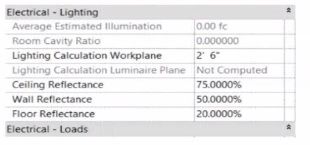
In the space properties for the space, the Lighting Calculation Luminaire Plane is Not Computed. What is causing this issue?
Answer : B
The parameter ''Lighting Calculation Luminaire Plane: Not Computed'' in the Space Properties dialog appears when Revit cannot perform a lighting calculation because no valid lighting fixtures are present within that defined space.
According to the Autodesk Revit MEP User's Guide (Chapter: Spaces and Lighting Analysis):
''Lighting calculations are performed based on the luminaire data available in the space. If no light fixtures are present, the parameter 'Lighting Calculation Luminaire Plane' displays as 'Not Computed'. Revit requires at least one hosted or ceiling-mounted lighting fixture with a valid light source to calculate illumination.''
In this case, although the space has defined reflectance values (ceiling, wall, and floor) and a lighting calculation workplane height (2'-6''), Revit cannot compute the Luminaire Plane because the software has no lighting geometry to reference for the photometric analysis.
Explanation of incorrect options:
A . Missing IES file: This would cause inaccurate photometric output, but not ''Not Computed.''
C . Lights not circuited: Circuiting affects load summaries, not lighting calculations.
D . Lights at different elevations: Revit still computes the average luminaire plane even with varied fixture heights.
Thus, the lighting calculation is not computed simply because no lighting fixtures are placed in the space.
References:
Autodesk Revit MEP 2011 User's Guide, Chapter 46: Spaces and Lighting Analysis, pp. 1064--1068.
Autodesk Revit 2021 Electrical Design Guide, Lighting Analysis Parameters.
Smithsonian Facilities Revit Template User's Guide (2021), Section 8.7 -- Lighting Performance Parameters in Spaces.
Question 3
Refer to exhibit.
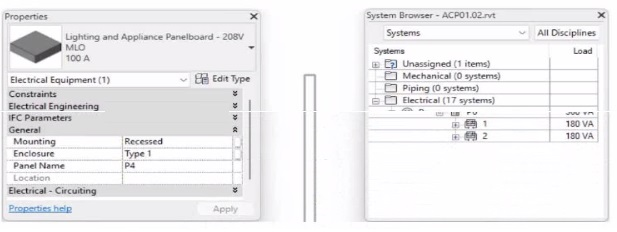
To which panel Is Panel P4 circuited?
Answer : B
In Autodesk Revit MEP Electrical Design, the System Browser is used to analyze and verify electrical systems, including panelboard connections, circuit hierarchies, and connected loads.
From the exhibit, the Properties palette shows that the selected equipment is a Lighting and Appliance Panelboard (208V MLO, 100A), named P4. To determine the parent panel that feeds Panel P4, we refer to the System Browser, which organizes the entire electrical distribution network hierarchically under the Electrical discipline.
In the System Browser on the right, under the Electrical category, we can observe that Panel P4 is nested directly under Panel P2. This organization indicates that P4 is circuited to (or fed from) Panel P2.
According to the Revit MEP 2011 User's Guide, Chapter 4, ''Electrical Systems---Using the System Browser,'' it states:
''The System Browser displays electrical systems in a tree structure. Each subpanel or device listed beneath a main panel is connected to that panel through an electrical circuit. When a panelboard appears under another, it indicates the subpanel is fed from that parent panel.''
This is further reinforced in Smithsonian Facilities Revit Electrical Template Documentation (April 2021), Section 8.3 ''Documentation Views,'' which describes:
''Panel schedules and browser hierarchies show the distribution sequence. Subpanels appear indented beneath their source panel, indicating electrical dependency and circuit assignment.''
Therefore, by interpreting both the Revit interface and Autodesk's documentation, Panel P4 is a subpanel connected to Panel P2, confirming that its electrical feed is assigned from Panel P2.
Final Verified Answer: B. Panel P2
Reference Sources:
Autodesk Revit MEP 2011 User's Guide, Chapter 4 --- Electrical Systems and the System Browser
Smithsonian Facilities Revit Template User's Guide, Section 8.3 --- Electrical and Fire Alarm Templates: Documentation Views
Question 4
An electrical designer has created a family and loaded It Into the project. The designer wants to connect the family to a power circuit but the Power icon is not available when the family Is selected.
How should the designer fix the problem?
Answer : D
In Revit Electrical Design, for a loadable family (such as electrical equipment, lighting fixtures, or devices) to connect to a power circuit, it must include an electrical connector defined in the Family Editor.
According to the Autodesk Revit MEP User's Guide (Chapter 17 -- Electrical Systems):
''For an electrical family to participate in a circuit, the family must contain an electrical connector. The connector defines the relationship between the component and the electrical system. Without a connector, Revit cannot establish a power connection, and the Power tool will not be available.'' --- Revit MEP User's Guide, Electrical Systems -- Creating Electrical Families
The connector type determines what kind of system (Power, Data, Communication, etc.) the family can join. When the electrical connector is not added, Revit cannot recognize the family as part of an electrical system, and thus the Power icon is grayed out or unavailable.
Incorrect Options:
A . Set the distribution system for the family -- only available after a connector is added.
B . Set the family parameter to Shared -- allows tagging or scheduling across projects but does not affect connectivity.
C . Change the Voltage parameter value -- affects circuit data but not connection availability.
Therefore, the issue is resolved only by adding an electrical connector in the Family Editor.
Verified References:
Autodesk Revit MEP User's Guide (2011) -- Electrical Systems Creating Electrical Families Adding Connectors
Revit Electrical Design Fundamentals Workbook -- ''Electrical connectors define the interface between components and electrical systems.''
Question 5
Refer to exhibit.
A panelboard has the following properties:
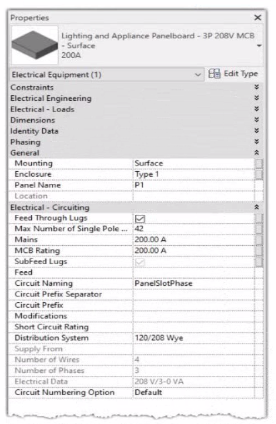
The Circuit Naming Scheme PanelSlolPhase. which defines the value of the Circuit Number parameter, is configured as follows:
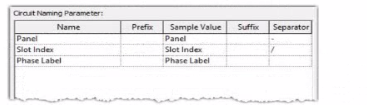
In electrical settings. Phase Labels have not been modified from the default "A." "B." and "C-
The Circuit Number lot a single-pole circuit in the panelboard's first breaker position is----------(Enter the correct value into the field)
Answer : A
The answer is P1/1/A
In Autodesk Revit Electrical Design, the Circuit Number for a branch circuit in a panelboard is automatically generated based on the Circuit Naming Scheme specified in the project's Electrical Settings. This naming scheme defines how each circuit is labeled by combining predefined fields such as Panel Name, Slot Index, and Phase Label.
From the exhibit, the Circuit Naming Parameter setup is configured as:
Name
Prefix
Sample Value
Suffix
Separator
Panel
Panel
Panel
---
''-''
Slot Index
Slot Index
Slot Index
---
''/''
Phase Label
Phase Label
Phase Label
---
---
The panelboard properties show that its Circuit Naming method is set to PanelSlotPhase, which means that Revit will generate circuit numbers using the following structure:
[Panel Name] -- [Slot Index] / [Phase Label]
From the exhibit:
Panel Name: P1
Slot Index (Breaker Position): 1 (since the question refers to the first breaker position)
Phase Label: A (default value for the first phase in a three-phase 120/208V Wye system)
Therefore, the Circuit Number for a single-pole circuit in the first breaker slot will be:
P1-1/A
This follows Revit's documented logic for circuit naming. According to the Autodesk Revit MEP User's Guide (Chapter 17 ''Electrical Systems''):
''The circuit numbering format is controlled by the Electrical Settings > Circuit Naming template. The default scheme combines panel name, circuit number, and phase label, using the separators defined by the user.''
Furthermore, the Smithsonian Facilities Revit Template User's Guide confirms:
''In the default electrical configuration, circuit numbers use the format [Panel Name]-[Circuit Number]/[Phase], such as 'P1-1/A' for the first single-pole circuit on phase A.''
Hence, based on the provided configuration and standard electrical setup, the correct circuit number for the first single-pole breaker position in panelboard P1 is P1-1/A.
References:
Autodesk Revit MEP User's Guide -- Chapter 17 ''Electrical Systems,'' pp. 420--427
Smithsonian Facilities Revit Template User's Guide -- Section 8.6 ''Panel Schedules and Circuit Naming Schemes,'' p. 90
Autodesk Revit Electrical Design Essentials -- ''Circuit Naming Rules and Panel Configuration Standards''
Question 6
An electrical designer is routing conduit through a building model to coordinate with other disciplines, the electrical designer wants to view selected components in a cropped 3D view.
With the conduit components selected, which tool should the designer use?
Answer : A
In Revit Electrical Design, the Selection Box tool is used to quickly isolate and display selected components in a cropped 3D view. When an electrical designer selects conduits or devices in a model and chooses Selection Box from the Modify tab, Revit automatically generates a 3D view bounded tightly around the selected elements, helping coordinate routing in confined or congested spaces.
According to the Revit MEP User's Guide under ''Creating 3D Views'':
''Use the Selection Box tool to create a 3D view that isolates selected elements. Revit automatically crops the view extents to the selected geometry.''
This feature is critical in multidisciplinary coordination because it allows the electrical designer to review specific conduits, cable trays, or lighting paths in context without manually adjusting view boundaries.
In contrast:
Default 3D View (Option B) shows the entire model.
Scope Box (Option C) controls view extents in 2D views or view templates, not instant isolation.
Section Box (Option D) is manually adjusted within an existing 3D view but does not automatically generate a cropped view around selected elements.
Therefore, the Selection Box is the correct and most efficient tool for this task.
References:
Autodesk Revit MEP User's Guide -- Chapter 47 ''Creating and Managing 3D Views,'' pp. 1108--1111
Smithsonian Facilities Revit Template User's Guide -- Section 3.6 ''Egress Routes and Coordination Views,'' p. 40
Autodesk Revit Electrical Design Essentials -- 3D Visualization and Coordination Techniques
Question 7
How can an arrowhead be added to a lag leader line?
Answer : C
In Autodesk Revit for Electrical Design, arrowheads on leader lines---such as those used with tags, text notes, or annotations---are controlled through Type Properties, not through instance properties or free-end options.
According to the Revit MEP User's Guide -- Annotating Chapter (Chapter 47 and 42), the section ''Modifying Tags'' explains:
''Select the tag, and on the Properties palette, click (Edit Type). In the Type Properties dialog, select a value for Leader Arrowhead to add an arrowhead to the leader line.''
This confirms that the arrowhead is defined at the type level, meaning any change applies to all tags or text notes of that annotation type throughout the project. The Leader Arrowhead property allows the designer to choose from predefined arrowhead styles (like ''Filled Arrow,'' ''Dot,'' ''Tick Mark,'' etc.), which are defined globally under:
Manage tab Settings panel Additional Settings Arrowheads.
Furthermore, the document specifies under ''Leader Arrowhead Properties'':
''Sets the arrowhead shape on the leader line. The value is the name of the arrowhead style defined by the Arrowheads tool.''
This behavior applies to all annotation categories, including text notes, keynotes, material tags, and electrical device tags, maintaining consistency across all view types in an electrical project.
Therefore, Option C is the correct answer because arrowheads are configured via Type Properties, while the other options are inaccurate:
Option A (Free End) only defines leader attachment behavior.
Option B (Instance properties) does not include a ''Leader Arrowhead'' toggle.
Option D (Enable Leader Line) only adds or removes a leader line, not the arrowhead style.
References:
Autodesk Revit MEP User's Guide -- Chapter 47 ''Annotating,'' pp. 1040--1055
Autodesk Revit MEP User's Guide -- Chapter 42 ''Text Notes and Tags,'' pp. 936--949
Autodesk Revit Electrical Design Essentials -- ''Leader Arrowhead Properties and Annotation Standards''
 All Official Question Types