Page: 1
/ 14
Total 101 questions
Dell PowerScale Maintenance Version 2 D-PSC-MN-01 Exam Questions
Question 1
A company must ensure their PowerScale cluster can handle many active client connections. What must they do when designing their system?
Answer : A
To ensure a Dell PowerScale cluster can handle many active client connections, the company should include a Leaf-Spine backend network in their system design.
Understanding Network Topologies:
Leaf-Spine Architecture:
A high-performance network topology designed to handle large amounts of east-west (node-to-node) traffic.
Consists of two network layers: leaf switches (access layer) and spine switches (aggregation layer).
Every leaf switch connects to every spine switch, providing multiple pathways and reducing bottlenecks.
Benefits for PowerScale Clusters:
Scalability:
Supports a large number of nodes and client connections without significant degradation in performance.
Low Latency:
Reduces hop count between any two endpoints, minimizing latency.
High Throughput:
Provides increased bandwidth to accommodate many active connections.
Redundancy:
Multiple pathways between nodes enhance fault tolerance.
Handling Many Active Client Connections:
Network Bandwidth:
A Leaf-Spine network ensures sufficient bandwidth is available for client connections and data movement.
Load Balancing:
Distributes client connections evenly across the network to prevent overloading any single path.
Reduced Contention:
Minimizes network congestion, leading to improved client experience.
Why Other Options Are Less Suitable:
Option B (Use the P100 node):
P100 nodes are accelerator nodes that enhance performance but do not specifically address handling many client connections.
Option C (Add maximum RAM in each node):
While increasing RAM can improve performance, it does not directly impact the cluster's ability to handle numerous client connections.
Option D (Add L3 cache to the nodes):
Adding L3 cache improves data retrieval speeds but does not significantly affect network capacity for client connections.
Dell PowerScale Reference:
Dell EMC PowerScale Network Design Considerations:
Discusses network topologies and their impact on cluster performance.
Dell EMC PowerScale Network Design Considerations
Dell EMC PowerScale Best Practices Guide:
Recommends network architectures for optimal performance.
Dell EMC PowerScale Best Practices
Knowledge Base Articles:
Article ID 000123002: 'Implementing Leaf-Spine Architecture for PowerScale Clusters'
Article ID 000123003: 'Scaling Client Connections in Dell PowerScale Environments'
Question 2
A customer notices a platform engineer intentionally leaving a 1U gap underneath a Dell PowerScale H400 chassis during racking and stacking What is the purpose of the gap?
Answer : B
During the installation of Dell PowerScale H400 nodes, it is standard practice to leave a 1U gap underneath the chassis to accommodate the Cable Management Tray (CMT). The Cable Management Tray is essential for organizing and supporting the network and power cables connected to the node. Proper cable management ensures that cables are neatly routed, reduces stress on the connectors, and prevents obstruction of airflow within the rack.
According to the Dell PowerScale Hardware Installation and Planning Guide, the inclusion of a Cable Management Tray improves serviceability and maintains optimal airflow by preventing cables from hanging in front of the equipment or blocking ventilation paths. By intentionally leaving a 1U gap, the platform engineer ensures that the Cable Management Tray can be installed without interfering with the node's operation or the rack's structural integrity.
Dell PowerScale Hardware Installation and Planning Guide
Best Practices for Cable Management in Dell PowerScale Systems
Question 3
A platform engineer must replace a failed chassis on a Dell PowerScale Gen6 cluster. What must the engineer do after powering off the nodes?
Answer : A
When replacing a failed chassis in a Dell PowerScale Gen6 cluster, it's critical to preserve the data and configuration by maintaining the exact placement of the drive sleds. After powering off the nodes, the engineer should:
Remove Drive Sleds:
Carefully remove each drive sled from the failed chassis.
Label for Identification:
Label each drive sled with its corresponding slot number or unique identifier.
Install New Chassis:
Mount the new chassis in the rack where the failed one was located.
Reinstall Drive Sleds:
Insert the labeled drive sleds into the same slots in the new chassis.
Power On Nodes:
Power on the nodes and verify that they boot correctly and rejoin the cluster.
This procedure ensures that the drives remain in their original configuration, preserving data integrity and cluster settings. There's no need to transfer motherboards or reimage drives, as these actions could disrupt cluster operations and lead to data loss.
Dell PowerScale Hardware Replacement Guide -- Chassis Replacement Procedures
Dell PowerScale OneFS Administration Guide -- Best Practices for Hardware Maintenance
Dell Knowledge Base Article -- Preserving Drive Order During Chassis Replacement
Question 4
Exhibit.
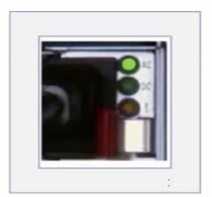
A platform engineer has connected power cables to a Dell PowerScale Gen6 node.
What does the status indicator indicate?
Answer : D
The status indicator shown in the image contains three status lights: AC, DC, and the general status indicator.
AC (Alternating Current): This green light indicates that the node is receiving proper AC power input.
DC (Direct Current): This green light shows that the system is properly converting AC power to DC and that the internal components are receiving the correct power.
Status Light (the third light, which is also green): This typically indicates the overall health of the node's power system.
Since all the indicators are green, this confirms that the PowerScale node is receiving power properly, the power conversion is functioning as expected, and the node is in a healthy operational state.
Thus, the node is powered on and healthy, making D. On and healthy the correct answer.
Question 5
What is the required minimum number of PowerScale P100 and Bl 00 Accelerator nodes to add to a PowerScale cluster?
Answer : A
The required minimum number of Dell PowerScale P100 and B100 accelerator nodes that can be added to a PowerScale cluster is 2.
Understanding Accelerator Nodes:
P100 and B100 Nodes:
The P100 (Performance Accelerator) and B100 (Backup Accelerator) nodes are designed to enhance specific functionalities within a PowerScale cluster.
P100 nodes improve performance by providing additional CPU and RAM resources.
B100 nodes are used to accelerate backup operations.
Minimum Node Requirements:
High Availability:
Dell PowerScale requires a minimum of two accelerator nodes to ensure high availability and redundancy.
If one node fails, the other can continue to provide services without interruption.
Cluster Integration:
Adding at least two nodes allows the cluster to distribute workloads effectively and maintain balanced performance.
Dell PowerScale Best Practices:
Fault Tolerance:
Deploying a minimum of two nodes prevents a single point of failure.
Scalability:
Starting with two nodes allows for future expansion as performance or capacity needs grow.
Why Other Options Are Incorrect:
Option B (4):
Four nodes exceed the minimum requirement; while acceptable, they are not the minimum.
Option C (1):
A single node does not provide redundancy or high availability.
Option D (3):
Three nodes also exceed the minimum requirement.
Dell PowerScale Reference:
Dell EMC PowerScale Network Design Considerations:
Outlines the requirements for deploying accelerator nodes.
Dell EMC PowerScale Network Design Considerations
Dell EMC PowerScale OneFS Administration Guide:
Provides information on node types and deployment best practices.
Dell EMC PowerScale OneFS Administration Guide
Knowledge Base Articles:
Article ID 000123001: 'Minimum Requirements for Adding Accelerator Nodes to PowerScale Clusters'
Question 6
A customer wants to add SSDs to the drive sleds in a Dell PowerScale H600 node for higher storage performance. What should the platform engineer tell the customer?
Answer : B
The platform engineer should inform the customer that hybrid node SSDs in identical sled locations can be used for either cache or primary storage.
Understanding Dell PowerScale H600 Nodes:
Hybrid Nodes:
H600 nodes are hybrid, combining HDDs for capacity and SSDs for performance.
Drive Sleds:
Nodes have sleds (drive bays) where drives are installed.
SSDs and HDDs are populated in specific sled locations.
Using SSDs for Cache or Primary Storage:
Flexibility:
SSDs in hybrid nodes can serve as either L3 cache or as a tier for primary storage.
Identical Sled Locations:
For consistency and performance optimization, SSDs should be installed in identical sled positions across all nodes in the pool.
Configuration:
Administrators can configure the usage of SSDs through SmartPools and data storage policies.
Benefits of Using SSDs for Primary Storage:
Performance Improvement:
Storing hot or frequently accessed data on SSDs enhances read/write speeds.
Data Tiering:
OneFS can automatically move data between SSDs and HDDs based on access patterns.
Why Other Options Are Less Suitable:
Option A (Cache expansion requires a Dell Professional Services engagement):
While professional services can assist, customers can add SSDs and configure caching without mandatory professional services.
Option C (Only F series nodes can use SSDs for primary storage):
Incorrect; hybrid nodes can also use SSDs for primary storage via SmartPools.
Option D (Each sled must have an equal number of SSDs):
Not strictly required; however, best practices recommend balanced configurations for performance consistency.
Best Practices:
Balanced Configuration:
Install SSDs uniformly across nodes to maintain consistent performance.
Consult Documentation:
Review hardware guides and configuration manuals for specific instructions.
Dell PowerScale Reference:
Dell EMC PowerScale OneFS SmartPools Administration Guide:
Details on configuring SSDs for primary storage and caching.
Dell EMC PowerScale OneFS SmartPools Guide
Dell EMC PowerScale H600 Hardware Guide:
Provides information on drive sled configurations and SSD usage.
Dell EMC PowerScale H600 Hardware Guide
Knowledge Base Articles:
Article ID 000123010: 'Using SSDs in Hybrid Nodes for Primary Storage'
Article ID 000123011: 'Configuring SSDs in Dell PowerScale Hybrid Nodes'
Question 7
Which cable is required to connect to the A300 console?
Answer : A
To connect to the A300 console, a cable with an RJ45 connector is required. The A300 node's console port uses an RJ45 interface for serial communication, allowing administrators to access the console for configuration and troubleshooting.
1. Understanding Console Connections on A300 Nodes:
Console Port Type:
The A300 node features an RJ45 serial console port.
This port provides access to the node's console interface.
Purpose of Console Access:
Allows administrators to perform initial configurations.
Useful for troubleshooting when network access is unavailable.
Provides direct command-line access to the node.
2. Required Cable for Connection:
RJ45 Serial Cable:
A standard RJ45-to-DB9 serial console cable is typically used.
One end has an RJ45 connector (plugs into the node).
The other end may have a DB9 connector (plugs into a computer's serial port) or USB via a serial-to-USB adapter.
Alternative Connection Methods:
If the computer does not have a serial port, a USB-to-serial adapter can be used.
Ensure the correct drivers are installed for the adapter.
3. Why Other Options Are Less Suitable:
Option B: DB9-to-DB9
The A300 uses an RJ45 port, not a DB9 port.
A DB9-to-DB9 cable would not physically connect to the node.
Option C: VGA
VGA is used for video output, not serial console connections.
The A300 does not use VGA for console access.
Option D: USB-to-USB
The A300 does not support console connections via USB-to-USB cables.
USB ports on the node are typically for peripheral devices, not console access.
4. Steps to Connect to the A300 Console:
Step 1: Obtain an RJ45-to-DB9 serial console cable.
Step 2: Connect the RJ45 end to the console port on the A300 node.
Step 3: Connect the DB9 end to the serial port on the computer (or use a USB-to-serial adapter if necessary).
Step 4: Use a terminal emulator (e.g., PuTTY) configured with the appropriate serial settings (usually 115200 baud rate, 8 data bits, no parity, 1 stop bit).
5. Dell PowerScale Reference:
Dell EMC PowerScale A300 Hardware Guide:
Provides details on hardware components, including console port specifications.
Dell EMC PowerScale A300 Hardware Guide
Dell EMC PowerScale OneFS CLI Administration Guide:
Discusses accessing the CLI via console connections.
Dell EMC PowerScale OneFS CLI Guide
Knowledge Base Articles:
Article ID 000180127: 'Connecting to the Console Port on PowerScale A-Series Nodes'
Article ID 000180128: 'Serial Console Connection Instructions for Dell PowerScale Nodes'
 All Official Question Types