Page: 1
/ 14
Total 49 questions
Dell PowerMax Operate v.2 D-PVM-OE-01 Exam Questions
Question 1
A Storage Administrator runs the command:
syradm list -environment -offline
What migration environments are listed?
Answer : C
Step by Step Comprehensive Detailed
The syradm list -environment -offline command in Solutions Enabler is used to display information about migration environments that are currently offline.
Here's what it shows:
Controlled Environments: It lists the migration environments that are directly controlled by the host where the command is executed. These are the environments where the host acts as the primary control point for the migration.
Reachable Environments: It also lists environments that are reachable from the host executing the command. This includes environments controlled by other hosts that are connected and accessible within the SAN fabric.
This broader scope allows administrators to get a comprehensive view of offline migration environments across their managed systems.
Why other options are incorrect:
A . The environments where the application has been taken offline to perform the cutover: While offline environments might be associated with cutovers, the command shows all offline environments regardless of their specific stage in the migration process.
B . Only the environments controlled by the host from where the list command is run: It also includes reachable environments, not just those directly controlled by the host.
Reference and documents of Dell's public documentation for PowerMax Operate v.2:
Dell Solutions Enabler 10.0.0 CLI User Guide: This guide provides detailed information about the syradm command and its various options, including the list -environment -offline command for displaying offline migration environments. You can find this document on the Dell Support website by searching for 'Solutions Enabler CLI User Guide.'
Question 2
From an application perspective, what should be done before performing an SRDF/S Restore operation?
Answer : C
Step by Step Comprehensive Detailed
Before performing an SRDF/S (synchronous) Restore operation, it is crucial to stop all host I/O activity to both the R1 (source) and R2 (target) devices. This ensures data consistency and prevents potential data loss or corruption during the restore process.
Here's why:
Data Integrity: An SRDF/S Restore operation involves copying data from the R1 device to the R2 device, overwriting any existing data on R2. If hosts are actively accessing and modifying data on either device during this process, it can lead to inconsistencies and data integrity issues.
Synchronization: SRDF/S maintains real-time synchronization between the R1 and R2 devices. 1 Performing a Restore operation while hosts are writing data can disrupt this synchronization and lead to unpredictable results.
Why other options are incorrect:
A . Continue accessing the R1 devices. Stop accessing the R2 devices: This would leave R1 vulnerable to data inconsistencies.
B . Stop accessing the R1 devices. Continue accessing the R2 devices: This would make R2 susceptible to data loss or corruption.
D . Continue accessing the R1 and R2 devices: This is the most dangerous option, as it would likely lead to data integrity issues.
Reference and documents of Dell's public documentation for PowerMax Operate v.2:
Dell Solutions Enabler 10.0.0 SRDF Family CLI User Guide: This guide provides detailed information about SRDF operations, including Restore. It emphasizes the importance of halting host I/O before performing such operations to ensure data consistency. You can find this document on the Dell Support website by searching for 'Solutions Enabler SRDF Family CLI User Guide.'
Dell PowerMax Family: Essentials and Best Practices Guide: This guide may offer general information about SRDF management and best practices, which would include recommendations for performing operations like Restore safely.
Question 3
SIMULATION
A company is setting up a multi-tenant environment where multiple departments share the same storage array with SID 1762. The IT department requires 2 TB of storage to be available on the ESXi1 host. Use "ESXi1_SG" for the storage group name, create a port group with Dir- Ports "OR-1C:0 and OR-2C:0," and leave all other settings at their default.
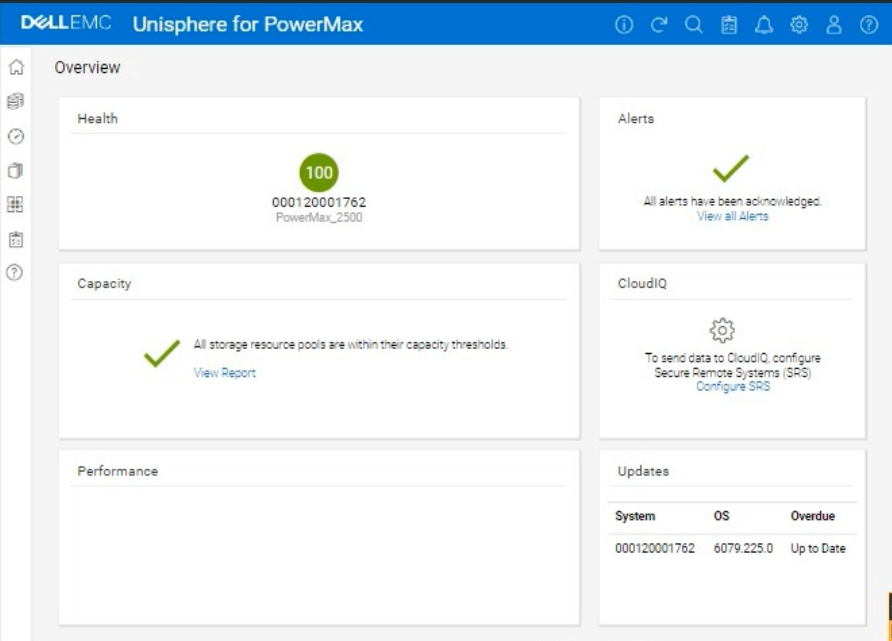
Using the simulator, provision the storage required with a single volume using auto-provisioning groups.
Answer : A
We need to provision 2 TB of storage to the ESXi1 host on a PowerMax array (SID 1762) using Unisphere, in a multi-tenant environment. We'll use auto-provisioning with the following specifics:
Storage Group Name: ESXi1_SG
Port Group: (A new port group with Directors OR-1C:0 and OR-2C:0)
Volume Size: 2 TB (single volume)
Other Settings: Default
Here are the step-by-step instructions, tailored for the Unisphere simulator as described in the question:
Steps:
1. Launch the Simulator and Navigate to Storage Groups
Open Unisphere for PowerMax in your web browser.
You should already be logged in to the simulator, with the PowerMax array with SID 1762.
In the left-hand navigation pane, click on Storage > Storage Groups.
2. Initiate Storage Group Creation
Click the Create button (likely a plus '+' icon) in the Storage Groups section to start the Create Storage Group wizard.
3. Name the Storage Group
In the 'Create Storage Group' wizard:
Storage Group Name: Enter ESXi1_SG.
Enable FAST/Service Level: Do not check this option, as we are leaving all other settings at their default.
Click Next or Continue (the exact wording might vary).
4. Add Volumes
Ensure 'Create new volumes' is selected.
Number of Volumes: Enter 1.
Volume Size:
Enter 2.
Select TB from the dropdown for the unit.
Click Next.
5. Create the Port Group
You should now be on the 'Connectivity' or 'Host' step, where you will add a new port group.
Select 'Create Port Group'
Port Group Name: Give the new port group a name. You can use something descriptive like 'ESXi1_PG,' or any name that follows your organization's naming conventions.
Select Ports:
Find and select the following Directors and ports from the list of available ports:
OR-1C:0
OR-2C:0
Note: The simulator may not allow you to highlight the exact director ports as in a production environment. It will likely display all directors and ports under the selected array. Just ensure they are selected as part of the port group.
Click Next.
6. Add host to the Masking View
Select 'Add Host'
Select 'Create New Host'
Host Name: ESXi1
Initiators: You don't have specific initiators to add in this simulation, so you can skip this part or add any from the available options. This is because we are working within a simulated environment.
Click Next
7. Review and Create
You'll be presented with a summary page that shows:
Storage Group: ESXi1_SG
Volume: 1 x 2 TB volume
Port Group: (The new port group you created with OR-1C:0 and OR-2C:0)
Host: ESXi1
Carefully review all the settings to make sure they are correct.
Click Run Now or Finish (or similar wording) to create the storage group, volume, port group, and masking view.
8. Verification (Optional)
After the operation completes, you can verify the results:
Go back to the Storage Groups list. You should see the ESXi1_SG storage group.
Click on ESXi1_SG to view its details. You should see the 2 TB volume and the associated host (ESXi1) and port group.
You can also navigate to Hosts > Port Groups to verify that the new port group was created correctly.
Finally, you can navigate to Hosts > Masking Views to verify that a masking view was created correctly.
Question 4
When reviewing storage group compliance for a specific storage group, you notice that the weighted response time for the storage group over the last four hours is compliant Upon further research, you see that the weighted response time for the last two weeks does not meet the defined response time for the assigned service level.
What is the overall compliance status for the storage group?
Answer : C
Step by Step Comprehensive Detailed
When evaluating storage group compliance in PowerMax, Unisphere considers the weighted response time of the storage group against its defined service level objectives (SLOs). The compliance status is determined based on how well the storage group meets its response time goals over different time periods.
In this case, even though the storage group's weighted response time is compliant over the last four hours, the fact that it does not meet the defined response time for the last two weeks indicates an overall non-compliant status.
This means that while the storage group might be performing adequately in the short term, it has not consistently met its performance goals over a longer period. This could indicate potential performance issues or the need for adjustments to the storage group's configuration or service level.
Why other options are incorrect:
A . Stable: A stable status would indicate consistent compliance over all time periods.
B . Marginal: A marginal status might suggest borderline performance, but not necessarily a clear violation of SLOs.
D . Critical: A critical status would likely indicate a severe performance issue or a significant breach of SLOs.
Reference and documents of Dell's public documentation for PowerMax Operate v.2:
Dell Unisphere for PowerMax 10.0.0 Online Help: The online help for Unisphere provides detailed information about storage group compliance monitoring, including how compliance status is determined and what the different status levels indicate. You can access this help within Unisphere itself or on the Dell Support website.
Dell PowerMax Family: Essentials and Best Practices Guide: This guide may offer general information about performance management and service level objectives in PowerMax, providing context for understanding storage group compliance.
Question 5
When setting Host I/O Limits on a Storage Group, what are the available dynamic I/O distribution modes?
Answer : C
Step by Step Comprehensive Detailed
Host I/O Limits in PowerMax allow you to control the maximum IOPS (Input/Output Operations Per Second) or bandwidth that a storage group can consume. This helps prevent performance issues caused by one application or workload monopolizing resources. When setting Host I/O Limits, you can choose from different dynamic I/O distribution modes:
Never: This is the default mode. It means that the I/O limits are statically distributed across the directors in the associated masking view. If a director fails, its allocated portion of the I/O limit is lost.
Balanced: In this mode, the I/O limits are dynamically adjusted based on the number of online directors. If a director fails, its I/O limit is redistributed among the remaining online directors. This helps maintain performance even in the event of a director failure.
Always: This mode provides full dynamic distribution of I/O limits. The limits are continuously adjusted across all online directors based on the current workload and demand. This ensures optimal resource utilization and performance.
Reference and documents of Dell's public documentation for PowerMax Operate v.2:
Dell PowerMax and VMware vSphere Configuration Guide: This guide provides detailed information about Host I/O Limits, including the different distribution modes and their benefits. You can find this document on the Dell Support website by searching for 'PowerMax and VMware vSphere Configuration Guide.'
Dell Solutions Enabler 10.0.0 CLI User Guide: This guide provides information on how to set Host I/O Limits using SYMCLI commands, including the -dynamic option for specifying the distribution mode.
Question 6
Which services are active after a Unisphere for PowerMax installation on a Microsoft Windows host?
Answer : D
Step by Step Comprehensive Detailed
When you install Unisphere for PowerMax on a Microsoft Windows host, it installs several services necessary for its operation. The two primary services that are active after installation are:
SMAS (Storage Management Agent Service): This service is responsible for communication between the Unisphere server and the PowerMax storage array. It handles tasks like collecting data, sending commands, and receiving alerts from the array.
smasdb: This service manages the local database used by Unisphere for storing configuration information, performance data, and other relevant information.
Why other options are incorrect:
A . SYMAPI and symrdfg: SYMAPI is a command-line interface tool, not a service. symrdfg is a service related to SRDF (Symmetrix Remote Data Facility) replication, which may not be active if SRDF is not configured.
B . SMASandGNS: GNS is not a standard service associated with Unisphere for PowerMax.
C . SMASandSTP: STP is not a standard service associated with Unisphere for PowerMax.
Reference and documents of Dell's public documentation for PowerMax Operate v.2:
Dell Unisphere for PowerMax 10.0.0 Installation Guide: This guide provides detailed instructions for installing Unisphere for PowerMax on different operating systems, including Windows. It also lists the services that are installed and their functions. You can find this document on the Dell Support website by searching for 'Unisphere for PowerMax Installation Guide.'
Dell Unisphere for PowerMax 10.0.0 Online Help: The online help documentation for Unisphere may also provide information about the services it uses and their roles.
Question 7
Four snapshots of a single source volume have been created. The snapshots were created with the same name at 8:00 AM, 10:00 AM, 12:00 PM: and 2:00 PM.
What is the generation number of the snapshot created at 2:00 PM?
Answer : D
Step by Step Comprehensive Detailed
In TimeFinder SnapVX, snapshots of a source volume are assigned generation numbers. These numbers indicate the order in which the snapshots were created. The first snapshot taken has a generation number of 0, the second has 1, and so on.
In this case, four snapshots were created at different times:
8:00 AM (Generation 0)
10:00 AM (Generation 1)
12:00 PM (Generation 2)
2:00 PM (Generation 3)
Therefore, the snapshot created at 2:00 PM has a generation number of 3.
Reference and documents of Dell's public documentation for PowerMax Operate v.2:
Dell Solutions Enabler 10.0.0 TimeFinder SnapVX CLI User Guide: This guide provides detailed information about SnapVX features and functionalities, including how generation numbers are assigned to snapshots. You can find this document on the Dell Support website by searching for 'Solutions Enabler TimeFinder SnapVX CLI User Guide.'
 All Official Question Types