Page: 1
/ 14
Total 45 questions
Dell SONiC Deploy D-SNC-DY-00 Exam Questions
Question 1
Refer to the exhibit.

What type of route is shown?
Answer : B
The exhibit shows a BGP EVPN route in a VXLAN environment. The route type can be determined based on the details provided. Type 2 routes in BGP EVPN are used to advertise MAC address reachability information between VTEPs (Virtual Tunnel End Points). The exhibit indicates a host route from another VTEP, which corresponds to a Type 2 route.
Dell Technologies SONiC documentation
BGP EVPN Configuration Guide
Question 2
SIMULATION
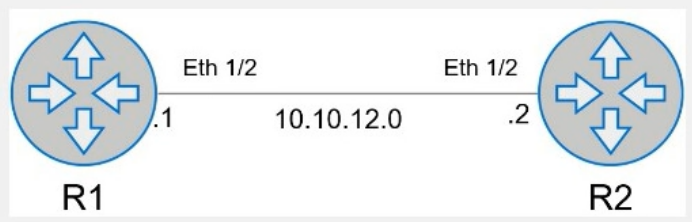
Configure the system to meet these requirements.
. Configure R1 with AS 1.
. R1 must use a static neighbor assignment for BGP peering.
. R1 needs to redistribute all current and future connected IPv4 routes.
All the required BGP configurations have already been completed on R2.
R2 resides in BGP AS 2.

Answer : A
Here is the step-by-step configuration for R1:
Enter BGP Configuration Mode:
R1# configure terminal
R1(config)# router bgp 1
Configure the BGP Neighbor:
R1(config-router)# neighbor 10.10.12.2 remote-as 2
Redistribute Connected Routes into BGP:
R1(config-router)# redistribute connected
Exit BGP Configuration Mode and Save the Configuration:
R1(config-router)# end
R1# write memory
Comprehensive Detailed Step by Step Explanation with Reference:
Enter BGP Configuration Mode:
To configure BGP on R1, you need to enter global configuration mode and then enter BGP configuration mode with the AS number. Since R1 is in AS 1, you use the command router bgp 1.
Configure the BGP Neighbor:
BGP neighbors must be manually specified. In this case, R1's neighbor is R2, which has an IP address of 10.10.12.2 and resides in AS 2. The command neighbor 10.10.12.2 remote-as 2 establishes this relationship.
Redistribute Connected Routes into BGP:
To ensure that all connected routes on R1 are advertised via BGP, you use the redistribute connected command. This ensures that any connected IPv4 routes are redistributed into BGP, meeting the requirement to advertise current and future connected routes.
Exit BGP Configuration Mode and Save the Configuration:
Once the configuration is complete, you exit BGP configuration mode by typing end and then save the configuration with the write memory command. This ensures that the changes persist after a reboot.
Cisco BGP Configuration Guide
Dell Technologies Networking - SONiC
Dell Enterprise SONiC Deployment Guide
These steps provide a comprehensive guide to configure R1 to meet the specified requirements for BGP peering and route redistribution.
Question 3
SIMULATION
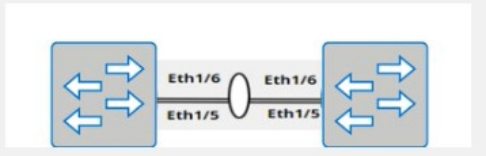
A customer must configure a peer link between two switches in the L2 MC-LAG scenario.
SwitchB has already been configured. Configure the peer link on SwitchA.
Use the following configuration information:
MC-LAG domain 1
VLAN 101
Peer link Port-Channel 100
SwitchA IP: 192.168.1.1/24
SwitchB IP: 192.168.1.2/24
MC-LAG system MAC: 00:00:00:11:11:11
The physical ports to connect the peer switch are Eth 1/5 and Eth 1/6 for each switch.

Answer : A
Here are the steps to configure the peer link on SwitchA:
Enter Configuration Mode:
SwitchA# configure terminal
Create VLAN 101:
SwitchA(config)# vlan 101
Create Port-Channel 100:
SwitchA(config)# interface port-channel 100
SwitchA(config-if-po100)# switchport mode trunk
SwitchA(config-if-po100)# switchport trunk allowed vlan 101
SwitchA(config-if-po100)# exit
Assign Physical Interfaces to Port-Channel 100:
SwitchA(config)# interface ethernet 1/5
SwitchA(config-if-eth1/5)# channel-group 100 mode active
SwitchA(config-if-eth1/5)# exit
SwitchA(config)# interface ethernet 1/6
SwitchA(config-if-eth1/6)# channel-group 100 mode active
SwitchA(config-if-eth1/6)# exit
Configure MC-LAG Domain 1:
SwitchA(config)# mclag domain 1
SwitchA(config-mclag-domain)# peer-link port-channel 100
SwitchA(config-mclag-domain)# local-ip 192.168.1.1
SwitchA(config-mclag-domain)# peer-ip 192.168.1.2
SwitchA(config-mclag-domain)# system-mac 00:00:00:11:11:11
SwitchA(config-mclag-domain)# exit
Save Configuration:
SwitchA# write memory
Comprehensive Detailed Step by Step Explanation with Reference:
Enter Configuration Mode:
Begin by entering the global configuration mode to make changes to the switch configuration.
Create VLAN 101:
Create VLAN 101 to be used for the MC-LAG peer link communication.
Create Port-Channel 100:
Enter the port channel interface configuration mode using interface port-channel 100.
Set the port channel to trunk mode with switchport mode trunk.
Allow VLAN 101 on the trunk with switchport trunk allowed vlan 101.
Exit the port channel interface configuration mode.
Assign Physical Interfaces to Port-Channel 100:
Enter interface configuration mode for ethernet 1/5 and assign it to port channel 100 using the channel-group 100 mode active command.
Exit the interface configuration mode.
Repeat the same steps for ethernet 1/6.
Configure MC-LAG Domain 1:
Enter the MC-LAG domain configuration mode using mclag domain 1.
Specify the peer link port channel with peer-link port-channel 100.
Configure the local IP address as 192.168.1.1 using local-ip 192.168.1.1.
Configure the peer IP address as 192.168.1.2 using peer-ip 192.168.1.2.
Set the MC-LAG system MAC address using system-mac 00:00:00:11:11:11.
Exit the MC-LAG domain configuration mode.
Save Configuration:
Save the configuration to ensure the changes persist after a reboot using the write memory command.
Dell Technologies Networking - SONiC
Dell Enterprise SONiC Deployment Guide
These steps provide a comprehensive guide to configure the peer link for an MC-LAG scenario on SwitchA, ensuring the specific requirements for IP addressing, VLAN configuration, and port channel setup are met.
Question 4
SIMULATION
VLAN 40 is configured in Switch A with an anycast-address of 192.168.40.254/24. The ARP neighbor suppression is enabled. Use the simulator to create a VTEP named vtep1 and assign an IP address of
10.10.10.1. Map the VNI 400 to VLAN 40.
Answer : A
Here are the steps to create the VTEP and map the VNI to the VLAN:
Enter Configuration Mode:
SwitchA# configure terminal
Create VTEP Interface:
SwitchA(config)# interface vtep1
SwitchA(config-if-vtep1)# ip address 10.10.10.1/24
SwitchA(config-if-vtep1)# exit
Map VNI 400 to VLAN 40:
SwitchA(config)# vlan 40
SwitchA(config-vlan)# vn-segment 400
SwitchA(config-vlan)# exit
Enable ARP Neighbor Suppression:
SwitchA(config)# interface Vlan40
SwitchA(config-if-Vlan40)# ip address 192.168.40.254/24
SwitchA(config-if-Vlan40)# vxlan arp-suppression
SwitchA(config-if-Vlan40)# exit
Save Configuration:
SwitchA# write memory
Enter Configuration Mode:
Begin by entering the global configuration mode to make changes to the switch configuration.
Create VTEP Interface:
Enter the interface configuration mode for the VTEP interface named vtep1 using interface vtep1.
Assign the IP address 10.10.10.1/24 to the VTEP interface using the ip address command.
Exit the interface configuration mode.
Map VNI 400 to VLAN 40:
Enter the VLAN configuration mode for VLAN 40 using vlan 40.
Map the VNI 400 to VLAN 40 using the vn-segment 400 command.
Exit the VLAN configuration mode.
Enable ARP Neighbor Suppression:
Enter the interface configuration mode for VLAN 40 using interface Vlan40.
Assign the anycast IP address 192.168.40.254/24 to the VLAN interface using the ip address command.
Enable ARP neighbor suppression using the vxlan arp-suppression command.
Exit the interface configuration mode.
Save Configuration:
Save the configuration to ensure the changes persist after a reboot using the write memory command.
Dell Technologies Networking - SONiC
Dell Enterprise SONiC Deployment Guide
These steps provide a comprehensive guide to configure a VTEP and map the VNI to VLAN 40 on Switch A, ensuring the specific requirements for IP addressing and ARP neighbor suppression are met.
Question 5
An administrator for a service provider uses this command on a switch:

What is the result of running the command?
Answer : C
The command interface vxlan vtep-stacking followed by map vni 10010 vlan 100 maps the VLAN traffic that an SVLAN identifies to a VNI on a VTEP. In this context, SVLAN (Service VLAN) is being mapped to a VXLAN Network Identifier (VNI) for encapsulation and transport across the VXLAN tunnel.
Dell Technologies SONiC documentation
VXLAN Configuration Guide
Question 6
SIMULATION
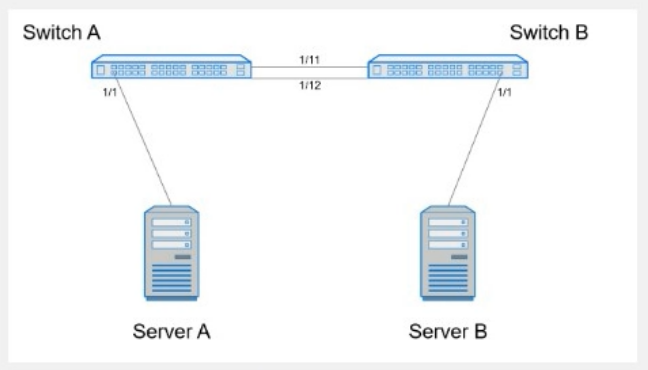
Create port channel 10 on interfaces Eth 1/11 and 1/12, so that it connects to an already configured switch. A server will be connected on Eth 1/1. Both the server and port channel need VLAN 1 untagged and only VLAN 10 tagged.
Complete the configuration on Switch A.

Answer : A
Here are the steps to configure the required port channel and VLAN settings on Switch A:
Enter Configuration Mode:
SwitchA# configure terminal
Create Port Channel 10:
SwitchA(config)# interface port-channel 10
SwitchA(config-if-po10)# switchport mode trunk
SwitchA(config-if-po10)# switchport trunk native vlan 1
SwitchA(config-if-po10)# switchport trunk allowed vlan 1,10
Assign Interfaces Eth 1/11 and Eth 1/12 to Port Channel 10:
SwitchA(config)# interface ethernet 1/11
SwitchA(config-if-eth1/11)# channel-group 10 mode active
SwitchA(config-if-eth1/11)# exit
SwitchA(config)# interface ethernet 1/12
SwitchA(config-if-eth1/12)# channel-group 10 mode active
SwitchA(config-if-eth1/12)# exit
Configure Interface Eth 1/1 for Server Connection:
SwitchA(config)# interface ethernet 1/1
SwitchA(config-if-eth1/1)# switchport mode trunk
SwitchA(config-if-eth1/1)# switchport trunk native vlan 1
SwitchA(config-if-eth1/1)# switchport trunk allowed vlan 1,10
SwitchA(config-if-eth1/1)# end
Save Configuration:
SwitchA# write memory
Comprehensive Detailed Step by Step Explanation with Reference:
Enter Configuration Mode:
Start by entering the global configuration mode to make changes to the switch configuration.
Create Port Channel 10:
Enter the port channel interface configuration mode using interface port-channel 10.
Set the port channel to trunk mode with switchport mode trunk.
Specify VLAN 1 as the native VLAN (untagged) using switchport trunk native vlan 1.
Allow VLANs 1 and 10 on the trunk with switchport trunk allowed vlan 1,10.
Assign Interfaces Eth 1/11 and Eth 1/12 to Port Channel 10:
Enter interface configuration mode for ethernet 1/11 and ethernet 1/12.
Assign each interface to port channel 10 using the channel-group 10 mode active command.
Exit the interface configuration mode.
Configure Interface Eth 1/1 for Server Connection:
Enter interface configuration mode for ethernet 1/1.
Set the interface to trunk mode with switchport mode trunk.
Specify VLAN 1 as the native VLAN using switchport trunk native vlan 1.
Allow VLANs 1 and 10 on the trunk with switchport trunk allowed vlan 1,10.
Exit the configuration mode.
Save Configuration:
Ensure the configuration is saved so it persists after a reboot using the write memory command.
Dell Technologies Networking - SONiC
Dell Enterprise SONiC Deployment Guide
These steps provide a comprehensive guide to configure a port channel and VLAN settings on Switch A to meet the specified requirements for server and trunk connections.
Question 7
What are two characteristics of route maps in Enterprise SONIC?
Answer : B, C
Route maps in Enterprise SONIC are used for controlling and modifying routing information. They contain a series of commands with matching criteria and actions. The permit or deny clause within route maps determines whether the matching routes are permitted or denied from being redistributed.
Dell Technologies SONiC Route Map Configuration Guide
Dell Networking Configuration Guide
 All Official Question Types