Page: 1
/ 14
Total 49 questions
F5 Networks BIG-IP Administration Install, Initial Configuration, and Upgrade F5CAB1 Exam Questions
Question 1
modification]
When is the License Service Check Date enforced on a BIG-IP system?
Answer : B
The Service Check Date determines whether a particular software version is allowed to run under the device's license.
When installing or upgrading TMOS, the installer checks the Service Check Date stored in the BIG-IP license file.
If the license date is older than the minimum required for the target version, the software installation is blocked.
This check happens specifically during a software install, not during routine device operations.
Editing virtual servers or system startup do not trigger this validation.
Thus, the enforcement happens during software installation.
Question 2
The monitoring team reports that the SNMP server is unable to poll data from a BIG-IP device.
What information will help the BIG-IP Administrator determine whether the issue originates from the BIG-IP system?
Answer : A
The exhibit shows a Self IP with:
VLAN: Data
Port Lockdown: Allow None
Impact of ''Allow None'' on SNMP
When a Self IP is configured with:
Port Lockdown: Allow None
the BIG-IP blocks all services and ports except a few hardcoded HA communication ports.
This means:
UDP/161 (SNMP) is blocked
UDP/162 (SNMP traps) is blocked
The SNMP server cannot poll or receive data from the BIG-IP through this Self IP
SNMP relies on access through the Self IP if out-of-band (mgmt interface) is not used.
Thus, the issue is directly caused by Port Lockdown = Allow None, which prevents SNMP communication.
Why the other options are incorrect:
B . Traffic Group must use a floating Traffic Group
SNMP polling does not require floating Self IPs.
Floating groups apply to HA failover IPs, not SNMP functionality.
C . VLAN/Tunnel must allow All VLANs
Self IPs are always bound to a VLAN; SNMP does not require All VLANs.
As long as the Self IP belongs to a reachable VLAN, SNMP can work.
D . Configuration is correct
It is not correct: Allow None blocks SNMP and is the problem.
Question 3
The BIG-IP Administrator uses Secure Copy Protocol (SCP) to upload a TMOS image to the /shared/images/ directory in preparation for an upgrade.
After the upload is complete, what will the system do before the image appears in the GUI under:
System Software Management Image List?
Answer : B
When a TMOS ISO file is transferred to /shared/images/, the BIG-IP automatically performs a validation step:
Checksum Verification
Before the image becomes visible in the GUI, the system verifies the internal checksum embedded inside the ISO.
This ensures:
The file was fully transferred
The image is not corrupted
It matches the official F5 release signature
Only after passing this verification does the GUI display the ISO under ''Available Images.''
Why the other options are incorrect:
A . Reboot into a new partition
No reboot occurs simply from uploading an image.
C . Copying into /var/local/images/
This directory is not used for ISO storage.
All valid images remain in /shared/images/.
Thus, the correct system action is checksum verification.
Question 4
The BIG-IP Administrator received a ticket that an authorized user is attempting to connect to the Configuration Utility from a jump host and is being denied.
The HTTPD allow list is configured as:
sys httpd {
allow { 172.28.31.0/255.255.255.0 172.28.65.0/255.255.255.0 }
}
The jump host IP is 172.28.32.22.
What command should the BIG-IP Administrator use to allow HTTPD access for this jump host?
Answer : C
The HTTPD allow list controls which IP addresses or subnets may access the Configuration Utility (TMUI) on the BIG-IP system. The Administrator already has two subnets allowed and needs to add a single host IP to the existing list.
The object /sys httpd allow supports actions such as add, delete, and replace-all-with.
Because the goal is to add one more entry without removing the existing permitted subnets, the correct command is:
modify /sys httpd allow add { 172.28.32.22 }
This appends the new host to the existing list while preserving the previously configured networks.
Why the other options are incorrect:
Option A (replace-all-with) would overwrite the entire allow list, removing existing permitted subnets---unacceptable.
Option B (delete) would remove the existing networks and not add the required host.
Therefore, the correct administrative action is to add the jump host's IP.
Question 5
Refer to the exhibit.
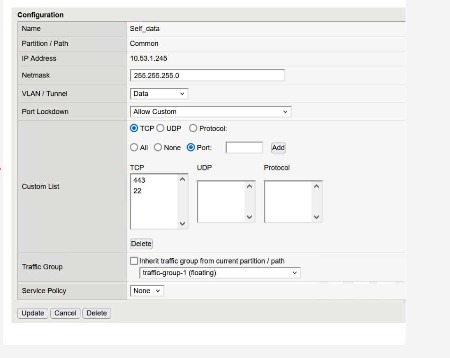
What traffic will be permitted to reach the BIG-IP?
Answer : B
The exhibit shows the configuration of a Self IP with:
Port Lockdown: Allow Custom
A Custom List that includes the following TCP ports:
443
22
Meaning of these ports:
TCP 443 HTTPS (TMUI --- web-based management)
TCP 22 SSH (command-line remote access)
No other TCP, UDP, or protocol entries are listed; therefore, only these two services are allowed to reach the BIG-IP via this Self IP.
Evaluating the answer choices:
Option Service Port Allowed?
FTP TCP 21 Not listed Not allowed
SSH TCP 22 Listed Allowed
Telnet TCP 23 Not listed Not allowed
Thus, SSH is the only traffic permitted through this Self IP configuration.
Question 6
Which two items demonstrate the creation of a new volume for software images?
(Choose two.)
Answer : A, C
In BIG-IP, software images are installed on boot volumes (for example, HD1.1, HD1.2, HD1.3, etc.).
To install software on a new volume, the administrator must instruct the system to create a new boot location before installation.
There are two correct ways to create a new volume:
A . tmsh command (with correct syntax)
tmsh install software image /shared/images/BIGIP-<version>.iso volume HD1.5 create-volume
This syntax correctly includes:
install software image
full path to ISO (/shared/images/...)
volume name (HD1.5)
create-volume keyword
This instructs BIG-IP to create the new boot volume as part of the installation.
C . Using the GUI System > Disk Management
From the Disk Management menu, the administrator can:
Select ''New Volume''
Enter the volume identifier (e.g., HD1.5)
Apply changes
This GUI method is officially supported and explicitly creates a new boot volume before installing the software.
Why the other options are incorrect:
B . Incorrect tmsh syntax
Missing /shared/images/ path
Incorrect command structure
D . Incorrect command structure
Missing required keywords and correct command hierarchy
E . Software Management Install does NOT create volumes
This installs to an existing volume only
The GUI install dialog does not create new boot volumes
Thus, only Option A and Option C properly create a new software volume.
Question 7
A BIG-IP device is licensed for LTM, ASM, APM, and AFM.
Currently, it will only be used for load balancing and web application firewalling.
To ensure optimal performance and efficient resource utilization, which of the following module provisioning combinations is the best choice?
Answer : C
BIG-IP provisioning determines how CPU, memory, and disk resources are allocated to each module. The goal is to provision only the modules required and at levels appropriate to their performance needs.
Requirements in the question
The device will be used for:
LTM (Local Traffic Manager) load balancing
ASM (Application Security Manager) WAF
No functions require:
APM (Access Policy Manager)
AFM (Advanced Firewall Manager)
Why Option C is correct
Provisioning both LTM and ASM at Nominal level provides:
Adequate performance for production load
Plentiful system resources while avoiding dedicating the entire system to a single module
Balanced allocation without starving memory or CPU
Setting APM: None and AFM: None ensures unused modules consume zero resources.
Why the other options are incorrect
A . Dedicated provisioning for both LTM and ASM
Two modules cannot both run in ''Dedicated'' mode.
Dedicated mode allocates all resources to a single module --- the second module cannot be dedicated simultaneously.
B . LTM and ASM both Dedicated
Same issue: only one module can be Dedicated at a time.
Also unnecessary for load balancing + WAF.
D . Setting APM and AFM to Minimal
Minimal still consumes memory and CPU.
Unused modules should be set to None.
Therefore, Option C is the best provisioning strategy.
 All Official Question Types