Page: 1
/ 14
Total 42 questions
Fortinet NSE 5 - FortiSandbox 5.0 Administrator FCP_FSA_AD-5.0 Exam Questions
Question 1
Refer to the exhibit.
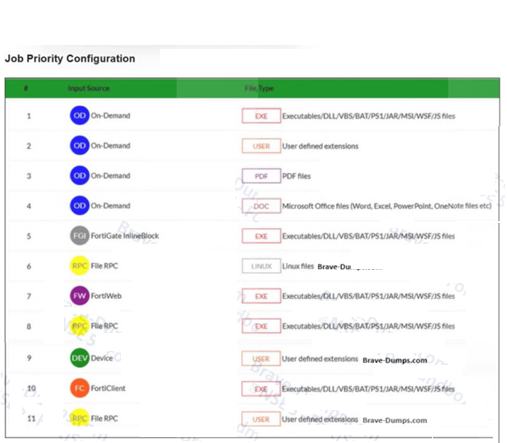
As a best practice, where must you rank the FortiClient inputs when configuring the job queue priority on FortiSandbox? (Choose one answer)
Answer : C
From the FortiClient EMS Integration lesson, the Study Guide explicitly states:
'It is always a good idea to place the files that are submitted by FortiClient, high on the Job Queue Priority since these are files that end users need immediate access to. In most cases, end users might not be willing to wait for a long time to access these files and placing the FortiClient submitted files high on the Job Queue Priority ensures that these files receive high priority for scanning from FortiSandbox.'
Looking at the exhibit, the Job Priority Configuration shows:
Positions 1-4: On-Demand inputs (highest priority)
Position 5: FortiGate InlineBlock
Positions 6-11: Other sources including FortiWeb, File RPC, Device, FortiClient
As a best practice, FortiClient should rank after On-Demand (positions 1-4) but before FortiGate inputs --- since end users need immediate file access, FortiClient submissions should be near the top but On-Demand scanning takes highest precedence.
Question 2
Which stage of the Cyber Kill Chain does FortiSandbox and FortiClient EMS integration help to block? (Choose one answer)
Answer : A
From the FortiClient EMS Integration lesson, the Study Guide states that FortiSandbox and FortiClient EMS integration helps break the kill chain by monitoring all downloads, removable media, mapped network drives, and email client file downloads --- intercepting threats at the Delivery stage before they can execute on the endpoint.
Additionally, from the Attack Methodologies section: 'When a USB is attached to a host protected with FortiClient, FortiClient can send the files on the USB drive to FortiSandbox for analysis, before allowing the user access to the files' --- further confirming the Delivery stage focus.
Question 3
You are asked to configure a FortiSandbox HA cluster. Port 4 on the primary and secondary nodes is dedicated for HA-specific communication. Which command must you use to configure the secondary node? (Choose one answer)
Answer : A
From the High Availability and Management lesson, the Study Guide states:
'You use the hc-settings command and options to configure the main HA settings, such as enable HA, and to configure the node's mode of operation, node alias, group name, group password, and the HA interface.'
The CLI flags breakdown:
-sc = Set configuration
-t = Node type flag where N = Secondary node
-n = Node alias (SecondaryNode)
-c = Cluster/group name (FSAGrp)
-p = Password
-i = HA interface (port4)
The Study Guide confirms the secondary node type uses -tN designation. Option B (-tM) represents the primary/master node, Option C (-tP) and Option D (-tR) are not valid node type designators for secondary nodes in the FortiSandbox HA CLI syntax.
Question 4
Refer to the exhibit.
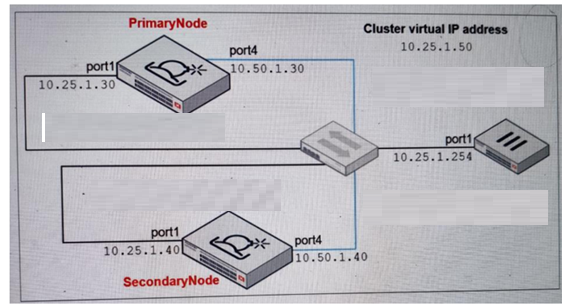
Which command must you use to configure the secondary node? (Choose one answer)
Answer : B
From the High Availability and Management lesson, the Study Guide states:
'You must configure the HA group name, password, and the virtual IP only on the primary node. After you configure those, you can add the secondary node to the group using the commands shown on this slide.'
The hc-slave command (shown as hc-worker for secondary) requires pointing to the Primary Node's HA interface IP, not the cluster virtual IP or the primary node's port1.
From the exhibit:
Primary Node port4 (HA interface) = 10.50.1.30
Secondary Node port4 = 10.50.1.40
Primary Node port1 = 10.25.1.30
Cluster Virtual IP = 10.25.1.50
The secondary node must connect to the Primary Node's dedicated HA communication port (port4 = 10.50.1.30) to join the cluster, making Option B the correct answer.
Question 5
There is a connectivity problem between FortiSandbox and the FortiGuard distribution servers. You observe that a firewall located between FortiSandbox and the internet allows traffic on ports TCP/4443, UDP/8888, and UDP/53. What is the cause of the issue? (Choose one answer)
Answer : A
From the Deployment and System Settings lesson, the Study Guide states:
'The test-network command checks FortiGuard services as its last set of validation tests. These include the FortiGuard distribution network (FDN) accessibility, FDN contract expiration, web filtering service, and the community cloud service. All these FortiGuard services should be reachable and valid for FortiSandbox to be effective.'
'The diagnose-debug fdn command provides details around FortiSandbox and the FortiGuard Distribution Network (FDN) communication and updates.'
FortiGuard Distribution Network (FDN) communication requires TCP/443 for HTTPS-based update and licensing communication. The current firewall rules allow TCP/4443 (API/management), UDP/8888 (FortiGuard queries), and UDP/53 (DNS), but TCP/443 is missing --- which is the standard port required for FortiGuard FDN connectivity and license validation.
Question 6
What is the default timeout value on FortiGate for inline scanning mode? (Choose one answer)
Answer : B
The correct answer is B. 50 seconds. The Study Guide explicitly states: ''FortiGate holds the file while waiting for a verdict from FortiSandbox... The default file inspection timeout, and maximum, is 50 seconds.'' This is the clearest direct statement for the default timeout used with inline scanning mode on FortiGate.
The Lab Guide confirms the same design limit from the operational side. During the inline scanning exercise, it notes: ''Because of the inline scanning time-out limit (maximum of 50 seconds), it's not recommended to submit files for VM inspection.'' That reinforces that inline scanning is designed for quick decision phases such as active content, community cloud, antivirus, and static analysis, not long VM dynamic analysis jobs. Therefore, options A, C, and D are incorrect because they are far above the documented inline inspection limit. The default FortiGate inline scanning timeout is 50 seconds.
Question 7
You are troubleshooting long delays between FortiMail file submissions to FortiSandbox and verdicts being returned form FortiSandbox. Which FortiMail debug tool must you use to troubleshoot this issue further? (Choose one answer)
Answer : B
The FortiSandbox 5.0 Administrator Lab Guide shows that, when diagnosing FortiMail submission issues, the required FortiMail debugs are sandboxclid and deferd. It explicitly instructs: ''Enter the following commands to enable both deferd and sandboxclid debugging'' and then shows that the deferd daemon spools the email and later releases the email from the queue folder after FortiSandbox processing.
Because sandboxclid is not one of the answer choices, the best answer among the listed FortiMail debug tools is deferd. It is the FortiMail daemon directly shown in the official lab workflow for troubleshooting submission-and-verdict handling. The other options in the answer list are not the ones the lab uses for FortiMail-to-FortiSandbox submission troubleshooting. So, based on the uploaded guide, diagnose debug application deferd is the correct choice.
 All Official Question Types