Page: 1
/ 14
Total 57 questions
Fortinet NSE 7 - Security Operations 7.6 Architect NSE7_SOC_AR-7.6 Exam Questions
Question 1
Refer to the exhibit.
Which two options describe how the Update Asset and Identity Database playbook is configured? (Choose two.)
Answer : A, D
Understanding the Playbook Configuration:
The playbook named 'Update Asset and Identity Database' is designed to update the FortiAnalyzer Asset and Identity database with endpoint and user information.
The exhibit shows the playbook with three main components: ON_SCHEDULE STARTER, GET_ENDPOINTS, and UPDATE_ASSET_AND_IDENTITY.
Analyzing the Components:
ON_SCHEDULE STARTER: This component indicates that the playbook is triggered on a schedule, not on-demand.
GET_ENDPOINTS: This action retrieves information about endpoints, suggesting it interacts with an endpoint management system.
UPDATE_ASSET_AND_IDENTITY: This action updates the FortiAnalyzer Asset and Identity database with the retrieved information.
Evaluating the Options:
Option A: The actions shown in the playbook are standard local actions that can be executed by the FortiAnalyzer, indicating the use of a local connector.
Option B: There is no indication that the playbook uses a FortiMail connector, as the tasks involve endpoint and identity management, not email.
Option C: The playbook is using an 'ON_SCHEDULE' trigger, which contradicts the description of an on-demand trigger.
Option D: The action 'GET_ENDPOINTS' suggests integration with an endpoint management system, likely FortiClient EMS, which manages endpoints and retrieves information from them.
Conclusion:
The playbook is configured to use a local connector for its actions.
It interacts with FortiClient EMS to get endpoint information and update the FortiAnalyzer Asset and Identity database.
Fortinet Documentation on Playbook Actions and Connectors.
FortiAnalyzer and FortiClient EMS Integration Guides.
Question 2
Which FortiAnalyzer connector can you use to run automation stitches9
Answer : D
Overview of Automation Stitches:
Automation stitches in FortiAnalyzer are predefined sets of automated actions triggered by specific events. These actions help in automating responses to security incidents, improving efficiency, and reducing the response time.
FortiAnalyzer Connectors:
FortiAnalyzer integrates with various Fortinet products and other third-party solutions through connectors. These connectors facilitate communication and data exchange, enabling centralized management and automation.
Available Connectors for Automation Stitches:
FortiCASB:
FortiCASB is a Cloud Access Security Broker that helps secure SaaS applications. However, it is not typically used for running automation stitches within FortiAnalyzer.
FortiMail:
FortiMail is an email security solution. While it can send logs and events to FortiAnalyzer, it is not primarily used for running automation stitches.
Local:
The local connector refers to FortiAnalyzer's ability to handle logs and events generated by itself. This is useful for internal processes but not specifically for integrating with other Fortinet devices for automation stitches.
FortiOS:
FortiOS is the operating system that runs on FortiGate firewalls. FortiAnalyzer can use the FortiOS connector to communicate with FortiGate devices and run automation stitches. This allows FortiAnalyzer to send commands to FortiGate, triggering predefined actions in response to specific events.
Detailed Process:
Step 1: Configure the FortiOS connector in FortiAnalyzer to establish communication with FortiGate devices.
Step 2: Define automation stitches within FortiAnalyzer that specify the actions to be taken when certain events occur.
Step 3: When a triggering event is detected, FortiAnalyzer uses the FortiOS connector to send the necessary commands to the FortiGate device.
Step 4: FortiGate executes the commands, performing the predefined actions such as blocking an IP address, updating firewall rules, or sending alerts.
Conclusion:
The FortiOS connector is specifically designed for integration with FortiGate devices, enabling FortiAnalyzer to execute automation stitches effectively.
Fortinet FortiOS Administration Guide: Details on configuring and using automation stitches.
Fortinet FortiAnalyzer Administration Guide: Information on connectors and integration options.
By utilizing the FortiOS connector, FortiAnalyzer can run automation stitches to enhance the security posture and response capabilities within a network.
Question 3
Which FortiAnalyzer feature uses the SIEM database for advance log analytics and monitoring?
Answer : A
Understanding FortiAnalyzer Features:
FortiAnalyzer includes several features for log analytics, monitoring, and incident response.
The SIEM (Security Information and Event Management) database is used to store and analyze log data, providing advanced analytics and insights.
Evaluating the Options:
Option A: Threat hunting
Threat hunting involves proactively searching through log data to detect and isolate threats that may not be captured by automated tools.
This feature leverages the SIEM database to perform advanced log analytics, correlate events, and identify potential security incidents.
Option B: Asset Identity Center
This feature focuses on asset and identity management rather than advanced log analytics.
Option C: Event monitor
While the event monitor provides real-time monitoring and alerting based on logs, it does not specifically utilize advanced log analytics in the way the SIEM database does for threat hunting.
Option D: Outbreak alerts
Outbreak alerts provide notifications about widespread security incidents but are not directly related to advanced log analytics using the SIEM database.
Conclusion:
The feature that uses the SIEM database for advanced log analytics and monitoring in FortiAnalyzer is Threat hunting.
Fortinet Documentation on FortiAnalyzer Features and SIEM Capabilities.
Security Best Practices and Use Cases for Threat Hunting.
Question 4
Which two types of variables can you use in playbook tasks? (Choose two.)
Answer : A, B
Understanding Playbook Variables:
Playbook tasks in Security Operations Center (SOC) playbooks use variables to pass and manipulate data between different steps in the automation process.
Variables help in dynamically handling data, making the playbook more flexible and adaptive to different scenarios.
Types of Variables:
Input Variables:
Input variables are used to provide data to a playbook task. These variables can be set manually or derived from previous tasks.
They act as parameters that the task will use to perform its operations.
Output Variables:
Output variables store the result of a playbook task. These variables can then be used as inputs for subsequent tasks.
They capture the outcome of the task's execution, allowing for the dynamic flow of information through the playbook.
Other Options:
Create: Not typically referred to as a type of variable in playbook tasks. It might refer to an action but not a variable type.
Trigger: Refers to the initiation mechanism of the playbook or task (e.g., an event trigger), not a type of variable.
Conclusion:
The two types of variables used in playbook tasks are input and output.
Fortinet Documentation on Playbook Configuration and Variable Usage.
General SOC Automation and Orchestration Practices.
Question 5
Refer to Exhibit:
A SOC analyst is creating the Malicious File Detected playbook to run when FortiAnalyzer generates a malicious file event. The playbook must also update the incident with the malicious file event data.
What must the next task in this playbook be?
Answer : D
Understanding the Playbook and its Components:
The exhibit shows a playbook in which an event trigger starts actions upon detecting a malicious file.
The initial tasks in the playbook include CREATE_INCIDENT and GET_EVENTS.
Analysis of Current Tasks:
EVENT_TRIGGER STARTER: This initiates the playbook when a specified event (malicious file detection) occurs.
CREATE_INCIDENT: This task likely creates a new incident in the incident management system for tracking and response.
GET_EVENTS: This task retrieves the event details related to the detected malicious file.
Objective of the Next Task:
The next logical step after creating an incident and retrieving event details is to update the incident with the event data, ensuring all relevant information is attached to the incident record.
This helps SOC analysts by consolidating all pertinent details within the incident record, facilitating efficient tracking and response.
Evaluating the Options:
Option A: Update Asset and Identity is not directly relevant to attaching event data to the incident.
Option B: Attach Data to Incident sounds plausible but typically, updating an incident involves more comprehensive changes including status updates, adding comments, and other data modifications.
Option C: Run Report is irrelevant in this context as the goal is to update the incident with event data.
Option D: Update Incident is the most suitable action for incorporating event data into the existing incident record.
Conclusion:
The next task in the playbook should be to update the incident with the event data to ensure the incident reflects all necessary information for further investigation and response.
Fortinet Documentation on Playbook Creation and Incident Management.
Best Practices for Automating Incident Response in SOC Operations.
Question 6
Refer to the exhibit.
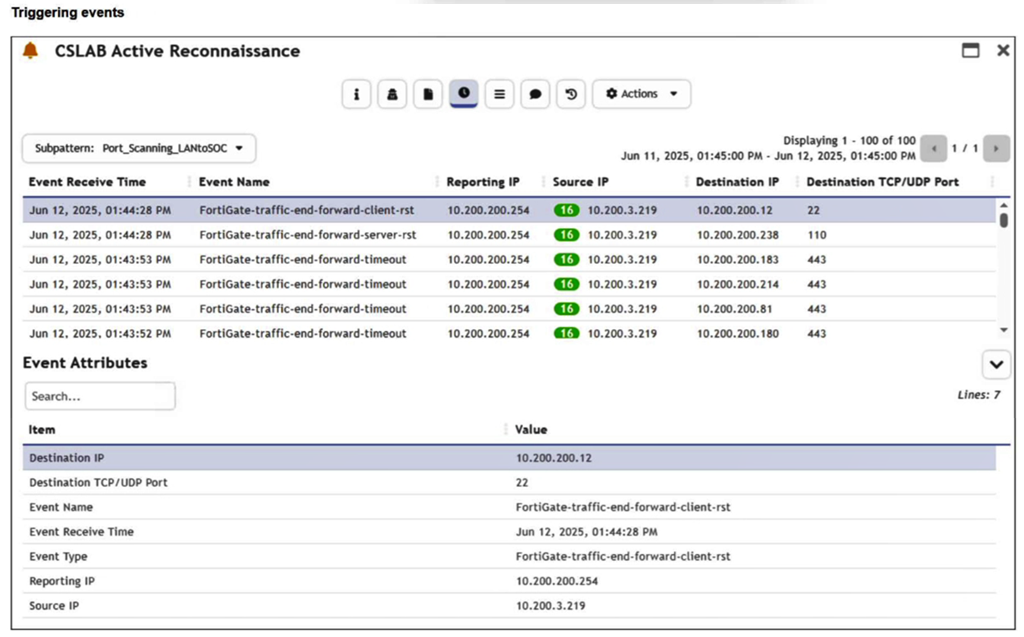
You are reviewing the Triggering Events page for a FortiSIEM incident. You want to remove the Reporting IP column because you have only one firewall in the topology. How do you accomplish this? (Choose one answer)
Answer : D
Comprehensive and Detailed Explanation From FortiSOAR 7.6., FortiSIEM 7.3 Exact Extract study guide:
In FortiSIEM 7.3, the Triggering Events view is a dynamic table that displays the individual logs that caused a specific rule to fire. To manage the visibility of data within this specific view:
Interface Customization: The 'Triggering Events' tab includes a column management feature. By clicking on the column headers or the table settings icon (typically found at the top right of the event list), an analyst can customize the display columns. This allows the user to uncheck the 'Reporting IP' attribute, effectively hiding it from the view without altering the underlying data or rule logic.
Operational Efficiency: This is a common task in environments with a simplified topology where the 'Reporting IP' is redundant information. Customizing the view helps the analyst focus on the most relevant data points, such as 'Source IP,' 'Destination IP,' and 'Destination Port.'
Why other options are incorrect:
A (Incident Action): Clearing a field from the Incident Action configuration affects what data is sent in an email alert or passed to a SOAR platform, but it does not change the layout of the FortiSIEM GUI 'Triggering Events' page.
B (Disable Correlation): Disabling correlation for an attribute determines whether that attribute is used by the rules engine to group events. It does not control the visual display of columns in the incident dashboard.
C (Parsing Rules): Removing attributes via parsing rules is a destructive process that prevents the SIEM from indexing that data entirely. This would make the 'Reporting IP' unavailable for all searches and reports, which is excessive for a simple display preference.
Question 7
Refer to the exhibits.
The Malicious File Detect playbook is configured to create an incident when an event handler generates a malicious file detection event.
Why did the Malicious File Detect playbook execution fail?
Answer : A
Understanding the Playbook Configuration:
The 'Malicious File Detect' playbook is designed to create an incident when a malicious file detection event is triggered.
The playbook includes tasks such as Attach_Data_To_Incident, Create Incident, and Get Events.
Analyzing the Playbook Execution:
The exhibit shows that the Create Incident task has failed, and the Attach_Data_To_Incident task has also failed.
The Get Events task succeeded, indicating that it was able to retrieve event data.
Reviewing Raw Logs:
The raw logs indicate an error related to parsing input in the incident_operator.py file.
The error traceback suggests that the task was expecting a specific input format (likely a name or number) but received an incorrect data format.
Identifying the Source of the Failure:
The Create Incident task failure is the root cause since it did not proceed correctly due to incorrect input format.
The Attach_Data_To_Incident task subsequently failed because it depends on the successful creation of an incident.
Conclusion:
The primary reason for the playbook execution failure is that the Create Incident task received an incorrect data format, which was not a name or number as expected.
Fortinet Documentation on Playbook and Task Configuration.
Error handling and debugging practices in playbook execution.
 All Official Question Types