Page: 1
/ 14
Total 91 questions
Palo Alto Networks XDR Analyst XDR-Analyst Exam Questions
Question 1
While working the alerts involved in a Cortex XDR incident, an analyst has found that every alert in this incident requires an exclusion. What will the Cortex XDR console automatically do to this incident if all alerts contained have exclusions?
Answer : D
If all alerts contained in a Cortex XDR incident have exclusions, the Cortex XDR console will automatically mark the incident as Resolved -- False Positive. This means that the incident was not a real threat, but a benign or legitimate activity that triggered an alert. By marking the incident as Resolved -- False Positive, the Cortex XDR console removes the incident from the list of unresolved incidents and does not count it towards the incident statistics.This helps the analyst to focus on the true positive incidents that require further investigation and response1.
An exclusion is a rule that hides an alert from the Cortex XDR console, based on certain criteria, such as the alert source, type, severity, or description. An exclusion does not change the security policy or prevent the alert from firing, it only suppresses the alert from the console.An exclusion is useful when the analyst wants to reduce the noise of false positive alerts that are not relevant or important2.
An exception, on the other hand, is a rule that overrides the security policy and allows or blocks a process or file from running on an endpoint, based on certain attributes, such as the file hash, path, name, or signer.An exception is useful when the analyst wants to prevent false negative alerts that are caused by malicious or unwanted files or processes that are not detected by the security policy3.
A BIOC rule is a rule that creates an alert based on a custom XQL query that defines a specific behavior of interest or concern.A BIOC rule is useful when the analyst wants to detect and alert on anomalous or suspicious activities that are not covered by the default Cortex XDR rules4.
Palo Alto Networks Cortex XDR Documentation, Resolve an Incident1
Palo Alto Networks Cortex XDR Documentation, Alert Exclusions2
Palo Alto Networks Cortex XDR Documentation, Exceptions3
Palo Alto Networks Cortex XDR Documentation, BIOC Rules4
Question 2
Which of the following represents the correct relation of alerts to incidents?
Answer : C
The correct relation of alerts to incidents is that alerts with same causality chains that occur within a given time frame are grouped together into an incident. A causality chain is a sequence of events that are related to the same malicious activity, such as a malware infection, a lateral movement, or a data exfiltration. Cortex XDR uses a set of rules that take into account different attributes of the alerts, such as the alert source, type, and time period, to determine if they belong to the same causality chain.By grouping related alerts into incidents, Cortex XDR reduces the number of individual events to review and provides a complete picture of the attack with rich investigative details1.
Option A is incorrect, because alerts with the same host are not necessarily grouped together into one incident in a given time frame. Alerts with the same host may belong to different causality chains, or may be unrelated to any malicious activity. For example, if a host has a malware infection and a network anomaly, these alerts may not be grouped into the same incident, unless they are part of the same attack.
Option B is incorrect, because alerts that occur within a three hour time frame are not always grouped together into one incident. The time frame is not the only criterion for grouping alerts into incidents. Alerts that occur within a three hour time frame may belong to different causality chains, or may be unrelated to any malicious activity. For example, if a host has a file download and a registry modification within a three hour time frame, these alerts may not be grouped into the same incident, unless they are part of the same attack.
Option D is incorrect, because every alert does not create a new incident. Creating a new incident for every alert would result in alert fatigue and inefficient investigations. Cortex XDR aims to reduce the number of incidents by grouping related alerts into one incident, based on their causality chains and other attributes.
Palo Alto Networks Certified Detection and Remediation Analyst (PCDRA) Study Guide, page 9
Palo Alto Networks Cortex XDR Documentation, Incident Management Overview2
Cortex XDR: Stop Breaches with AI-Powered Cybersecurity1
Question 3
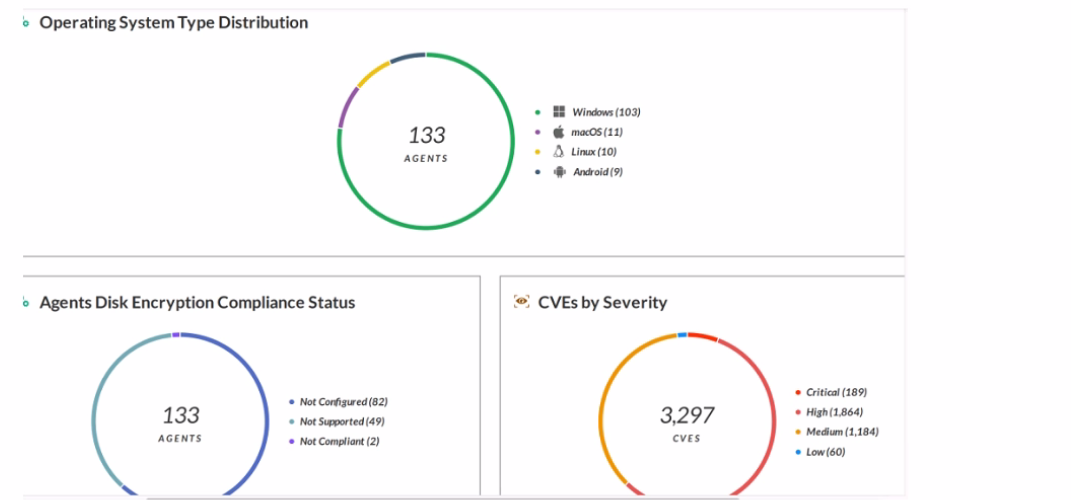
Which statement is correct based on the report output below?
Answer : C
The report output shows the number of endpoints that have forensic inventory data collection enabled, which is a feature of Cortex XDR that allows the collection of detailed information about the endpoint's hardware, software, and network configuration. This feature helps analysts to investigate and respond to incidents more effectively by providing a comprehensive view of the endpoint's state and activity. Forensic inventory data collection can be enabled or disabled per policy in Cortex XDR.Reference:
Forensic Inventory Data Collection
Cortex XDR 3: Getting Started with Endpoint Protection
Question 4
How does Cortex XDR agent for Windows prevent ransomware attacks from compromising the file system?
Answer : B
Cortex XDR agent for Windows prevents ransomware attacks from compromising the file system by utilizing decoy files. Decoy files are randomly generated files that are placed in strategic locations on the endpoint, such as the user's desktop, documents, and pictures folders. These files are designed to look like valuable data that ransomware would target for encryption. When Cortex XDR agent detects that a process is attempting to access or modify a decoy file, it immediately blocks the process and alerts the administrator. This way, Cortex XDR agent can stop ransomware attacks before they can cause any damage to the real files on the endpoint.Reference:
Anti-Ransomware Protection
PCDRA Study Guide
Question 5
Live Terminal uses which type of protocol to communicate with the agent on the endpoint?
Answer : B
Live Terminal uses theWebSocketprotocol to communicate with the agent on the endpoint. WebSocket is a full-duplex communication protocol that enables bidirectional data exchange between a client and a server over a single TCP connection. WebSocket is designed to be implemented in web browsers and web servers, but it can be used by any client or server application. WebSocket provides a persistent connection between the Cortex XDR console and the endpoint, allowing you to execute commands and receive responses in real time. Live Terminal uses port 443 for WebSocket communication, which is the same port used for HTTPS traffic.Reference:
Initiate a Live Terminal Session
WebSocket
Question 6
What is the Wildfire analysis file size limit for Windows PE files?
Answer : C
The Wildfire analysis file size limit for Windows PE files is 100MB. Windows PE files are executable files that run on the Windows operating system, such as .exe, .dll, .sys, or .scr files. Wildfire is a cloud-based service that analyzes files and URLs for malicious behavior and generates signatures and protections for them. Wildfire can analyze various file types, such as PE, APK, PDF, MS Office, and others, but each file type has a different file size limit. The file size limit determines the maximum size of the file that can be uploaded or forwarded to Wildfire for analysis. If the file size exceeds the limit, Wildfire will not analyze the file and will return an error message.
According to the Wildfire documentation1, the file size limit for Windows PE files is 100MB. This means that any PE file that is larger than 100MB will not be analyzed by Wildfire. However, the firewall can still apply other security features, such as antivirus, anti-spyware, vulnerability protection, and file blocking, to the PE file based on the security policy settings.The firewall can also perform local analysis on the PE file using the Cortex XDR agent, which uses machine learning models to assess the file and assign it a verdict2.
WildFire File Size Limits: This document provides the file size limits for different file types that can be analyzed by Wildfire.
Local Analysis: This document explains how the Cortex XDR agent performs local analysis on files that cannot be sent to Wildfire for analysis.
Question 7
Which built-in dashboard would be the best option for an executive, if they were looking for the Mean Time to Resolution (MTTR) metric?
Answer : D
The Incident Management Dashboard provides a high-level overview of the incident response process, including the Mean Time to Resolution (MTTR) metric. This metric measures the average time it takes to resolve an incident from the moment it is created to the moment it is closed. The dashboard also shows the number of incidents by status, severity, and assigned analyst, as well as the top alerts by category, source, and destination. The Incident Management Dashboard is designed for executives and managers who want to monitor the performance and efficiency of their security teams.Reference: [PCDRA Study Guide], page 18.
 All Official Question Types