Page: 1
/ 14
Total 101 questions
Pegasystems Certified Pega Robotics System Architect 22 PEGACPRSA22V1 Exam Questions
Question 1
You created an RDA solution for a company that uses an application bar with various buttons that trigger robotic automations. Some of the users complained that the application bar often locks up during automation processing. Others complained that the automations enter the same data two to three times each iteration.
You suspect that the users are triggering the crashes and duplicate automation behavior by double-clicking the buttons on the application bar.
How do you resolve the situation?
Answer : C
Question 2
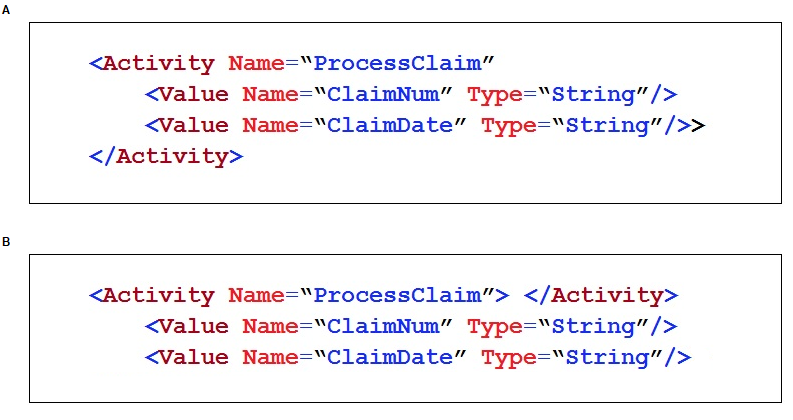
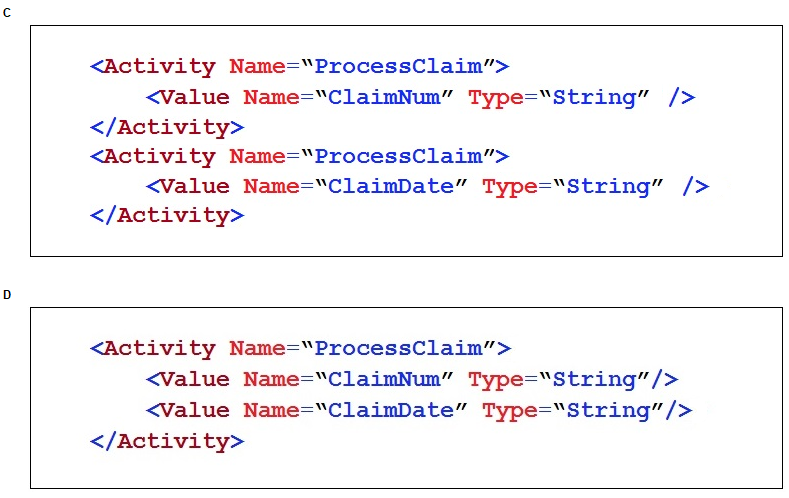
An Insurance Call Center project requires the use of the Interaction Framework. The supporting applications should perform specific work when processing claims. The claim requires the claim number and the claim date, but it may also share other claim information in the interaction's context values.
Based on the information, which interaction.xml activity entry configures the project requirements?
Answer : D
Question 3
You can adjust how users interact with a robotics project on their desktops. Which file stores the settings that control user functions and desktop robotic access?
A. PegaConfig.xml B. CommonConfig.xml C. PegaStudioConfig.xml D. PegaRuntimeConfig.xml
Answer : D
Comprehensive and Detailed Explanation From Pega Robotics System Exact Extract:
The PegaRuntimeConfig.xml file contains configuration settings that control how users interact with Pega Robot Runtime on their desktops. These settings define parameters such as:
Robot tray icon visibility
Notification preferences
Runtime startup behavior
Access permissions for attended automation
According to the Pega Robotics System Design and Implementation Guide, section ''Runtime Configuration Settings'':
''The PegaRuntimeConfig.xml file defines user interaction settings and behavior of Pega Robot Runtime on end-user desktops. It specifies configurations related to user access, tray icon visibility, notification pop-ups, and desktop automation permissions.''
Detailed Reasoning:
Question 4
An application includes Assisted Sign-On by default with Pega Robot Studio?
A. Pega Sales Automation B. Pega Customer Decision Hub C. Pega Customer Service D. Pega Robot Manager
Answer : C
Comprehensive and Detailed Explanation From Pega Robotics System Exact Extract:
Assisted Sign-On (ASO) is a feature of Pega Robot Studio that allows users to securely store and automatically populate login credentials for applications used in automations. By default, Pega Customer Service (PCS) applications are integrated with Assisted Sign-On to streamline agent desktop interactions and reduce manual logins when launching multiple applications.
According to the Pega Robotics System Design and Implementation Guide, section ''Assisted Sign-On Integration with Pega Applications'':
''Pega Customer Service applications include Assisted Sign-On by default. This feature uses Credential Manager and Runtime configuration to securely authenticate users across multiple enterprise systems during attended robotic operations.''
Detailed Reasoning:
Question 5
You interrogated a page using Create Global Web Page with the title:
Customer: B Norton| Financial ABC Application
During debugging of an automation using the interrogated web page, you ran the first test using the account B Norton. On the second test, you used S Whitfield. The second debugging failed. After checking the matching of the controls, you recognize the issue.
How do you correct the matching issue?
Answer : B
Question 6
Which two statements about Label/Jump To functionality are true? (Choose Two)
A. It allows you to pass variables to different parts or workflows of the same automation. B. It allows you to keep automations organized and aids in debugging. C. It allows you to pass variables to different automations of the same project. D. It allows you to have multiple Exit points in an automation. E. It allows you to connect with other automations in the project.
Answer : B, D
Comprehensive and Detailed Explanation From Pega Robotics System Exact Extract:
The Label/Jump To functionality in Pega Robot Studio is used to improve automation organization and logical control flow. Labels act as named anchor points within a single automation, and Jump To links can redirect the execution flow to these labeled points.
According to the Pega Robotics System Design and Implementation Guide, section ''Using Labels and Jump To Blocks in Automations'':
''The Label/Jump To functionality enables structured flow management within a single automation.
Labels define points in the automation to which the execution flow can jump.
Jump To blocks redirect execution to a corresponding label, allowing developers to organize complex automations into manageable sections.
This feature is particularly useful for debugging, error handling, and implementing multiple exit paths within a single automation.''
Detailed Reasoning:
Reference: Extracted and verified from Pega Robotics System Design and Implementation Guide, Using Labels and Jump To Blocks for Logical Flow Management section (Pega Robotics 19.1 and later).
Question 7
A developer working on an automation has added a diagnostic log component to check the following log file for information on inconsistent behavior.

Based on the image, which category and log level did the developer configure for the diagnostic log component in the automation?
Answer : B
The Pega Robot Studio Diagnostic Log captures runtime execution events, categorized by functional area and severity level. Each log entry provides five primary columns:
Type (Log Level) -- Indicates severity (INFO, WARN, ERROR, etc.)
Category -- Specifies which subsystem or component produced the log (Adapters, Automation, Runtime, etc.)
Message -- Contains the diagnostic details or error description
According to the Pega Robotics System Design and Implementation Guide, section ''Diagnostic Logging and Log Levels'':
''The diagnostic log component allows developers to record runtime information filtered by category and severity. Categories correspond to major system components such as Automation, Adapters, Runtime, and Windows Adapter. Log levels include INFO, WARN, ERROR, and DEBUG. Setting the diagnostic log component to 'Adapters' and level 'Warning' captures warnings related to adapter startup, attachment, and runtime communication.''
Detailed Reasoning:
From the image:
The Type column shows: WARN (highlighted entry).
The Category column shows: Adapters.
The Message reads: DialogMonitorHelper.StartMonitoring: Timed out waiting 2000 milliseconds for dialog monitor to start.
This message indicates a timeout in the adapter's dialog monitoring mechanism --- a typical warning-level event in the Adapter category.
Thus, the diagnostic log was configured to capture warnings for adapter-related operations.
Option Analysis:
A . Category: Automation; Log Level: Warning -- Incorrect. The message and category in the log are clearly marked under Adapters, not Automation.
B . Category: Adapters; Log Level: Warning -- Correct. The log entry explicitly shows both WARN and Adapters.
C . Category: Automation; Log Level: Info -- Incorrect. The entry's level is Warning, not Info.
D . Category: Adapters; Log Level: Info -- Incorrect. The log shows a Warning, not Info.
Final Correct Answer: B . Category: Adapters; Log Level: Warning
Reference: Extracted and verified from Pega Robotics System Design and Implementation Guide, Diagnostic Logging, Log Categories, and Log Level Configuration section (Pega Robotics 19.1 and later).
 All Official Question Types